Security Essentials
How to protect your account, your work, and the cluster.
Why this matters
- Your account is your responsibility
- A compromised account can affect other users and cluster
availability
- Most incidents are preventable with basic hygiene
The defenses are mostly small habits. This section covers the ones
that matter most.
Use a Password Manager
Strong, unique passwords are impossible to remember. A password
manager generates and stores them, locked behind a single master
password.
Why it matters for HPC:
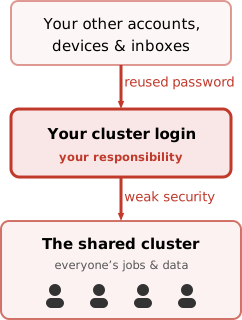
- Your login password is exactly the credential attackers want
- Reuse means a leak anywhere becomes a leak
here
- Long random passwords defeat guessing and dictionary attacks
Reasonable choices:
- Bitwarden: free, open-source, self-hostable
- KeePassXC: free, open-source, fully offline
- 1Password: paid, polished, common in industry
- Browser built-ins: better than reuse, but
limited
A manager also holds your SSH key passphrases,
2FA backup codes, and secure notes. Useful for
everything else in this section.
Keep Your OS Defaults
The shipped defaults are good. The mistake is weakening
them.
Windows
- Defender: on
- Firewall: on
- User Account Control (the “allow this app to make changes?” prompt):
on
- Don’t add third-party antivirus, it widens the attack surface
without adding value
Linux
- Don’t run network services you don’t need — especially
sshd; most laptops never need to accept SSH
- See what’s listening:
sudo ss -tlnp (shows TCP,
listening sockets, numeric ports, owning processes)
- Disable what you don’t need:
systemctl disable --now <service>
- If you must run
sshd (shared PC): enable
fail2ban
Your SSH Key Is a Credential
A key pair has two halves with opposite jobs:
- Private key: “this is me.” Only you can
sign with it; anyone can verify the signature.
- Public key: “for me only.” Anyone can encrypt
to it; only your private key opens it — so it’s safe to
share.
Why the private key never travels: At login,
your machine signs a challenge and the cluster verifies it with
your public key. The cluster only stores the public
half (authorized_keys), so copying your private key to
Hunter isn’t just risky, it’s pointless.
Required:
- Keep the private key on your own device only
chmod 600 ~/.ssh/id_* (OpenSSH refuses world-readable
keys)- Keep the passphrase, even when typing it is annoying
Never:
- Paste a private key into chat, email, or a ticket
- Copy a private key to Hunter or any shared system
- Reuse one key across many unrelated systems
If a private key is ever exposed, assume it’s
compromised and replace it.
Locking Down Your Key on Disk
Same rule as the last slide: keep the private key private,
as enforced by the OS.
Linux / macOS / WSL (from previous slide)
OpenSSH refuses to use a private key that others can read.
$ ls -ld ~/.ssh                  # the directory
drwx------  ...  /home/you/.ssh   # 700, only you

$ ls -l ~/.ssh/id_ed25519*       # the key pair
-rw-------  ...  id_ed25519       # private: 600, only you
-rw-r--r--  ...  id_ed25519.pub   # public:  644, readable

$ chmod 700 ~/.ssh                # directory: 700
$ chmod 600 ~/.ssh/id_ed25519     # private key: 600
The public key is meant to be shared, so 644 is
correct.
Windows — where keys live
- OpenSSH:
%USERPROFILE%\.ssh\
- MobaXterm: configurable (under its home dir)
Windows OpenSSH also refuses keys readable by others:
icacls <keyfile> /inheritance:r            # drop inherited access
icacls <keyfile> /grant:r "%USERNAME%:F"   # grant only yourself (Full)
GUI: right-click key → Properties → Security → Edit → remove everyone
but yourself.
Back up the private key somewhere safe (e.g. your password
manager).
SSH Fingerprints
The first time you connect, SSH shows you the host’s fingerprint and
asks if you trust it:
The authenticity of host 'hunter.hww.hlrs.de' can't be established.
ED25519 key fingerprint is SHA256:dJnEmGknqP1RBiZoiKV5x6Kbg/L2z2jMYeHiyTaxYYI
Are you sure you want to continue connecting (yes/no/[fingerprint])?
This is not a formality. The fingerprint identifies
the server you are about to send your credentials to. If an attacker has
redirected the connection (compromised DNS, wrong network, evil twin),
the fingerprint will not match.
What to do:
- Compare the displayed fingerprint against HLRS’s published values,
see here for Hunter
or Vulcan
before typing
yes
- If they do not match, stop and report it, do not
connect
Once accepted, the fingerprint is stored in
~/.ssh/known_hosts. SSH will silently use it on future
connections, and warn loudly if it ever changes:
@@@@@@@@@@@@@@@@@@@@@@@@@@@@@@@@@@@@@@@@@@@@@@@@@@@@@@@@@@@
@    WARNING: REMOTE HOST IDENTIFICATION HAS CHANGED!     @
@@@@@@@@@@@@@@@@@@@@@@@@@@@@@@@@@@@@@@@@@@@@@@@@@@@@@@@@@@@
A legitimate change, server reinstall, key rotation,
is announced by HLRS in advance. An unexpected warning
should be reported, not dismissed.
Credentials in Scripts and Git
The most common credential leak: a secret committed to git, then
pushed.
Never commit to scripts or repositories:
- Passwords or API keys
- Private SSH keys
- Database connection strings
- Authentication tokens
Commit a secret by accident? Rotate it immediately.
Deleting it in a later commit is not enough. Once pushed, the history is
permanent.
# Bad: secret hardcoded
$ curl -H "Authorization: Bearer abc123" ...

# Better: read from a file outside the repo
$ TOKEN=$(cat ~/.secrets/api_token)
$ curl -H "Authorization: Bearer $TOKEN" ...
The secret file outside the repo should itself be
chmod 600.
Files Are Created With Default Permissions
umask decides the permissions of files you create. The
default on our clusters is 0077: new files
are not group-readable, even when they sit inside a
“shared” directory.
So a freshly written output file is private by default. Sharing is
always a deliberate act, never automatic.
Sharing inside a workspace? See this slide from day
1:
ws_share: per-person but persistent;
new files shared automatically (Hunter). Best when your team works in
the workspace over time.chgrp / chmod: shares the
folder once; new files will not be shared.
$ umask
0077
$ touch test.txt
$ ls -l test.txt
-rw-------  1 you yourgroup  0 ...  test.txt   # only you
When Something Looks Wrong
Usually you find out because HLRS contacts you.
Admins watch for resource-abuse patterns and reach out before you’d
notice anything yourself.
What you can check yourself:
- Recent login times and source IPs you don’t
recognize
- Long-running processes on the login node you didn’t
start
$ last $USER | head    # recent logins + source IP
$ ps -fu $USER         # all your processes
If something looks off, submit a Trouble
Ticket with the details.
Do not investigate by running unfamiliar commands.
That can destroy evidence if you are right.
Quick Checklist
Ongoing habits worth maintaining:
- No credentials hardcoded in scripts or committed to git
~/.ssh/ is 700, private keys are
600- You have not uploaded data your project agreement does not
cover
If anything is unclear, the answer is: ask before doing.
Hunter - Node Architecture
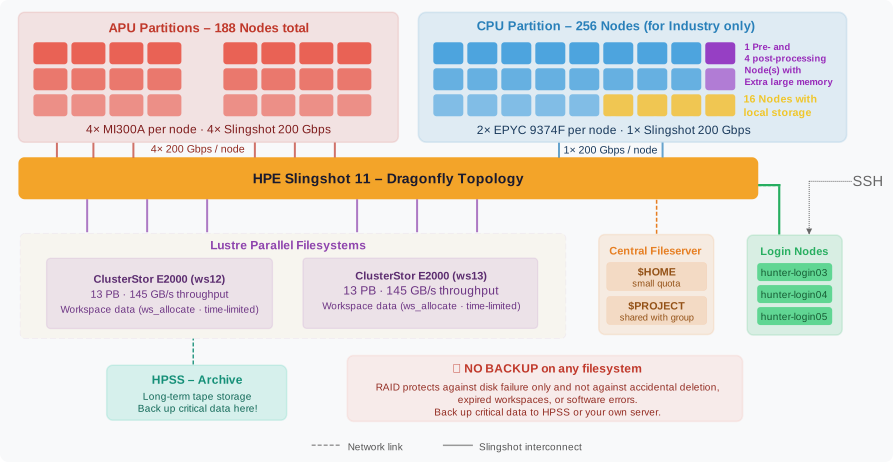
Two node types:
|
APU nodes |
CPU nodes
(industry only) |
| Count |
188 |
256 |
| Processors |
4× AMD MI300A per node |
2× AMD EPYC 9374F per node |
| Cores |
24 Zen4 CPU + 228 GPU CUs per APU |
32 CPU cores per socket (64/node) |
| Memory |
128 GB HBM3 per APU (512 GB/node) |
768 GB DDR5-4800 per node |
| Network |
4× Slingshot 200 Gbps per node |
1× Slingshot 200 Gbps per node |
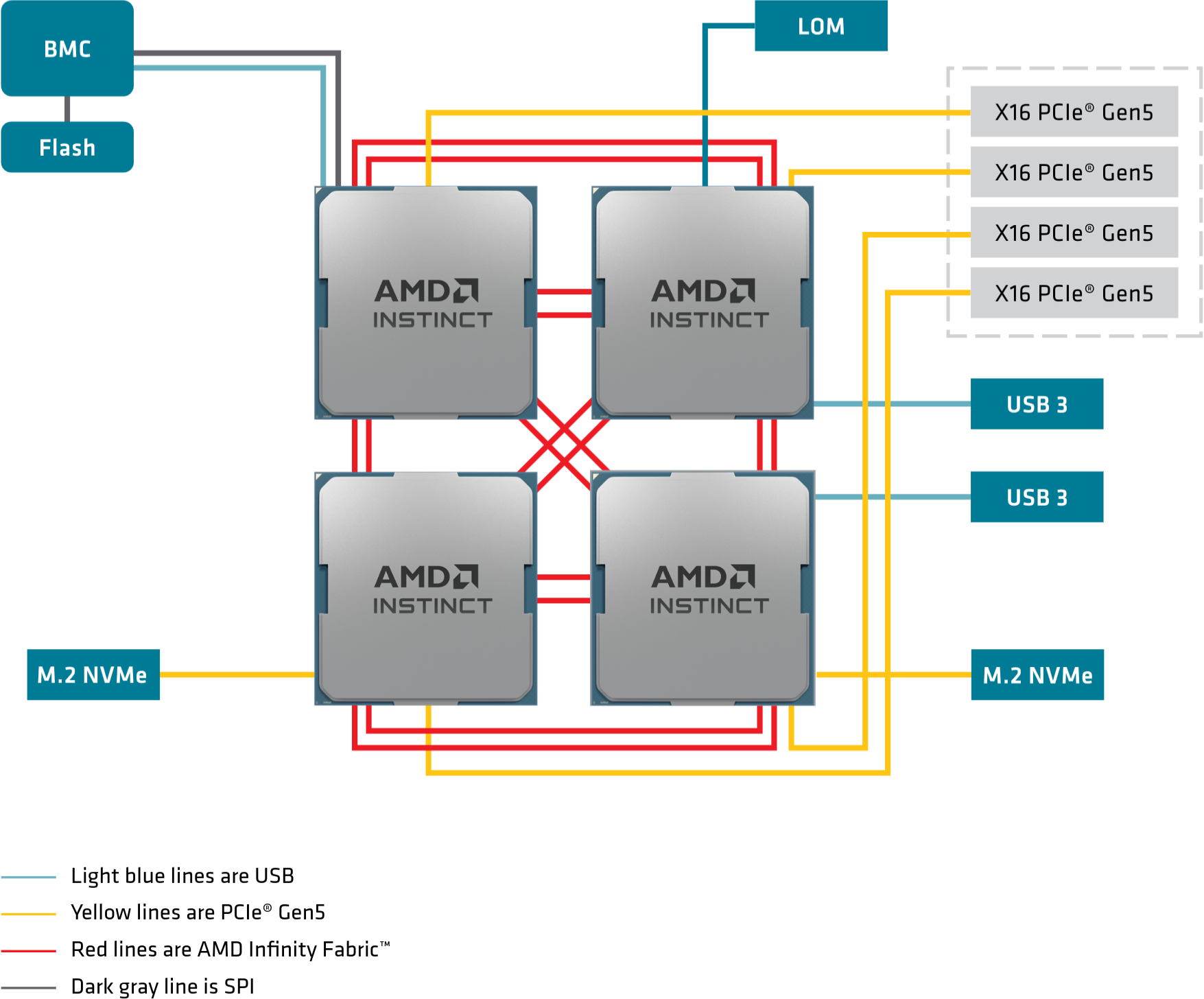
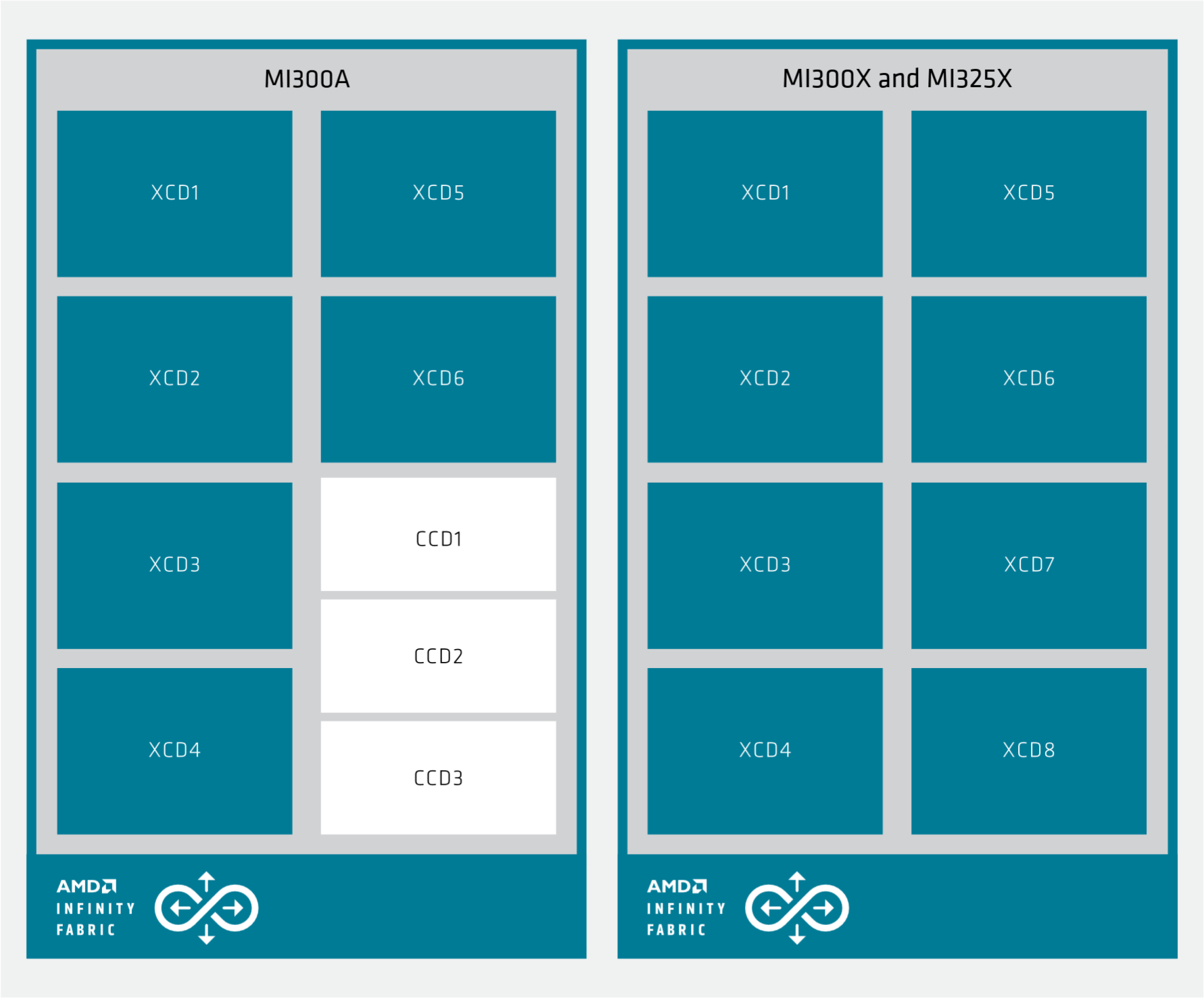
Key insight: The MI300A is an APU
(CPU, GPU, and HBM on a single chip). No PCIe bottleneck between CPU and
GPU.
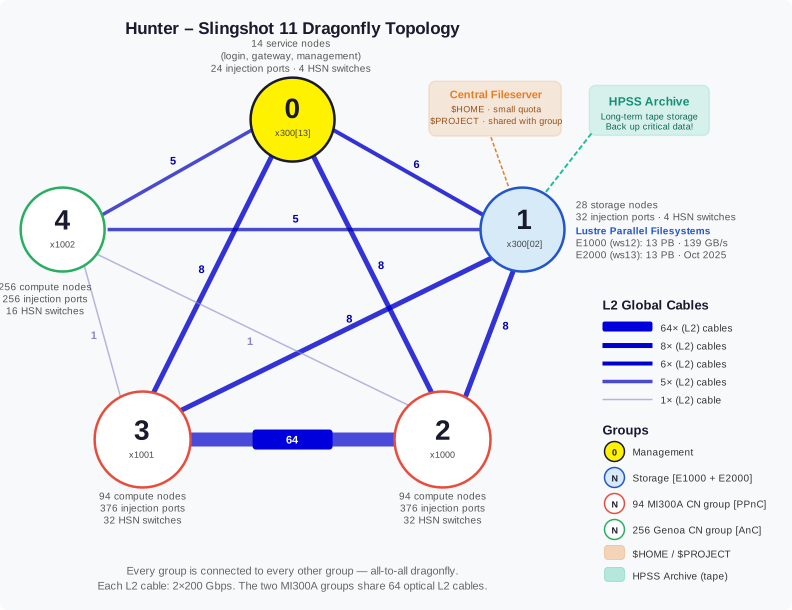
Interconnect: HPE Slingshot 11, dragonfly topology,
5 groups
AMD MI300A
Using the GPUs/APUs
- Each MI300A has 228 compute units (CUs)
- Each CU runs up to 32 wavefronts
- Each wavefront has 64 threads
Theoretical maximum (per APU): 228 × 32 × 64 = 466,944
threads (assuming minimal register usage).
To saturate a single APU, aim for at least
~200,000 elements — so roughly
800,000–1,000,000 for a full node of 4 APUs.
APUs are programmed like ordinary GPUs: code written for CPUs must be
ported to the GPU architecture.
Pinning for APUs
Why pin? A node has 4 MI300A chips,
each with its own 24 cores, GPU, and HBM.
Crossing the inter-chip link wastes bandwidth, so each rank should
drive only the GPU on its own chip, using that chip’s
local HBM.
Natural layout in the default (SPX) mode: 4 ranks per node,
one per chip, which is why the jobscript uses
mpiprocs=4. The --cpu-bind /
--gpu-bind lines are this layout;
mpiexec enforces what you write, so wrong lines pile ranks
onto one GPU and idle the rest.
See also: https://kb.hlrs.de/platforms/index.php/Affinity_and_Pinning
Hunter: Network
- HPE Slingshot 11 Dragonfly, 5 groups
- Every group linked to every other group
- All-to-all within each group too (not shown)
- Any two nodes only a few hops apart
- Adaptive routing around congestion; built for large
jobs
Hunter: Where to Put My Data
Where should I put my data?
| Storage |
Speed |
Persistence |
Capacity |
Use for |
| RAM / tmpfs |
Fastest |
Job only |
512GB HBM3 (per APU node)
768GB DDR5 (per CPU node) |
Temporary scratch, /dev/shm |
/localscratch/$JOBID
(NVMe, only some nodes) |
Very fast |
Job only |
3.5TB (per NVMe node) |
Fast local I/O |
| Workspace (Lustre) |
Fast |
Max 60 days (3 Extensions)
Has quota on the number of
files/folders |
25 PB (shared)
A few TB per project |
Large project data
Job input/output |
| HPSS (tape) |
Slow |
Archive |
500TB (shared) |
Long term storage |
$HOME or $PROJECT (NFS)
|
Slow |
Permanent |
50GB or 200GB |
Configs, scripts, small files |
Vulcan (NEC Cluster)
Vulcan is a heterogeneous computing platform providing specialized
resources for pre-/postprocessing, visualization, GPU computing, and
data analytics.
Access requires a separate allocation, so ask your
project manager.
node_type |
# |
CPU |
Cores |
RAM |
GPU / Accelerator |
/localscratch |
/tmp |
clx |
96 |
2× Xeon Gold 6248 |
40 |
384 GB |
- |
- |
- |
skl |
72 |
2× Xeon Gold 6138 |
40 |
192 GB |
- |
- |
- |
genoa |
60+96(vulcan2) |
2× EPYC 9334 |
64 |
768 GB |
- |
- |
- |
genoa-a30 |
24 |
2× EPYC 9124 |
32 |
768 GB |
1× Nvidia A30 (24 GB) |
3.8 TB NVMe |
- |
a100-40gb |
19 |
2× EPYC 7702 |
128 |
1024 GB |
8× Nvidia A100 (40 GB) |
14.6 TB NVMe |
3.5 TB NVMe |
a100-80gb |
4 |
2× EPYC 7702 |
128 |
1024 GB |
8× Nvidia A100 (80 GB) |
14.6 TB NVMe |
3.5 TB NVMe |
rome1tb |
4 |
2× EPYC 7702 |
128 |
1024 GB |
- |
21.5 TB |
850 GB |
rome2tb |
4 |
2× EPYC 7702 |
128 |
2048 GB |
- |
21.5 TB |
850 GB |
rome4tb |
1 |
2× EPYC 7702 |
128 |
4096 GB |
- |
21.5 TB |
850 GB |
genoa-smp |
2 |
2× EPYC 9334 |
64 |
3072 GB |
- |
- |
- |
visamd |
6 |
2× Xeon Silver 4112 |
8 |
96 GB |
1× AMD Radeon WX8200 |
- |
- |
visnv |
2+1 (vulcan2) |
2× Xeon Silver 4112 |
8 |
96 GB |
1× Nvidia Quadro RTX 4000 |
- |
- |
Hunter Nutzer bekommen nicht automatisch Zugriff auf Vulcan. Je
nachdem über welches Projekt sie kommen kann die Vorgehensweise hier
unterschiedlich sein. GCS Projekte: über Projektleiter HLRS
Industriekunden: über Projektleiter Uni Projekte: über Uni Instituts
Admin HLRS Projekte: über Accounting Team
Soon
![]()
AI optimized HPC system HammerHAI (late 2026)
| Platform |
NVIDIA GB200 NVL4 by HPE |
| GPU Accelerator |
NVIDIA B200 Blackwell |
| Host CPU |
NVIDIA Grace |
| Storage |
VAST Data DASE |
| Network |
NVIDIA Quantum-X800 InfiniBand |
| Cooling |
Liquid cooling |
![]()
Exascale-System Herder (2027)
| Platform |
HPE Cray GX5000 |
| GPU Accelerator |
AMD Instinct MI430X |
| Host CPU |
AMD EPYC Venice |
| Storage |
HPE Cray Storage System E2000 |
| Network |
HPE Slingshot 400 |
| Cooling |
100% direct liquid cooling |
Practical
Pitfalls
Dos and don’ts on an HPC system
Login Nodes Are Shared
The login node is shared by all users. Heavy CPU or
memory work makes it sluggish for everyone.
Avoid on login nodes:
- Using all cores yourself (especially
make -j)
find / du -sh on huge directory trees
(your own files are fine; avoid /, /lustre,
system paths)- Running simulations, even “small” ones
- Python or R analyses that use a lot of memory
Generally fine on login nodes:
- Compiling codebases (e.g.
make -j 8)
- File transfers (
rsync, scp)
- Editing files, browsing the filesystem
- Inspecting your own files (
ls, find,
du -sh, grep)
- Light scripting, submitting jobs, monitoring queues
For testing/prototyping: request an interactive job
(qsub -I ...)
The Login Node Has Limits
Each process on the login node has a CPU-time limit of 2
hours. A single process that exceeds it is killed without
warning:
Killed
$
For compile jobs and other resource-heavy work, prefix
nice -n 19 to lower priority and keep the
login node responsive for others:
$ nice -n 19 make -j 8
$ nice -n 19 tar -czf backup.tar.gz large_dir/
Reference: kb.hlrs.de/platforms/index.php/10_minutes_before_the_first_job
Quotas Will Bite You
Three things have quotas on Hunter:
- Disk space in your home and workspace
directories
- Number of files (inode quota, 200,000 per group)
for workspace only, separate from disk space
- Wall time and node hours for jobs (project
budget)
When you or your group exceed a quota, no new jobs start in
the batch queues, you and your group get an email about it.
Existing data isn’t deleted, but you’re blocked from running until usage
drops.
$ quota -s            # disk + inode usage in home directory
$ ws_quota            # disk + inode usage in workspace
$ ws_list             # your workspaces + their sizes
$ qstat -f -u $USER   # running jobs
Watch the file count, not just the size. Compiling a
large project in a workspace can exhaust your inode quota long before
you fill the disk.
No Backup, Anywhere
HLRS does not back up any user data on any cluster
filesystem.
This applies to:
$HOME (small, but still not backed up)- Workspaces on the parallel filesystem
- Any other user-accessible storage on the cluster
RAID protects against hardware failures, but nothing
else. It does not recover from:
rm -rf mistakes- Accidental overwrites
- Workspace lifetime expiry
- Bugs in your own code that corrupt output files
You are responsible for backing up your own
data.
- Pull important data back to your local machine with
rsync or scp
- Archive long-term results to HPSS (costs per TB per
rmMonth)
- Keep source code in a git repository on a hosted
service
Workspaces: Fast, Large, Temporary
Your $HOME is small (50 GB) and slow for HPC I/O. For
working data, use a workspace on the parallel
filesystem (Lustre).
Workspaces are:
- Large: TB-scale, sized for actual project data
- Fast: optimized for parallel I/O from many
nodes
- Temporary: they have a lifetime and are released
automatically
Set an expiry reminder so you don’t lose data:
ws_allocate -r 7 -m you@hlrs.de ...
(or set
mail: / reminder: in
~/.ws_user.conf)
$ ws_allocate myproject 60   # allocate for 60 days
$ ws_list                    # workspaces + remaining time
$ ws_find myproject          # print the path
$ ws_extend myproject 60     # extend to 60 days (can be used 3 times)
$ ws_release myproject       # release (with grace period for: ws_restore)
Symlink a workspace into $HOME for convenience:
$ ln -s $(ws_find myproject) ~/work
Files Are Created With Default Permissions
umask decides the permissions of files you create. The
default on our clusters is 0077: new files
are not group-readable, even when they sit inside a
“shared” directory.
So a freshly written output file is private by default. Sharing is
always a deliberate act, never automatic.
Sharing inside a workspace? See this slide from day
1:
ws_share: per-person but persistent;
new files shared automatically (Hunter). Best when your team works in
the workspace over time.chgrp / chmod: shares the
folder once; new files will not be shared.
$ umask
0077
$ touch test.txt
$ ls -l test.txt
-rw-------  1 you yourgroup  0 ...  test.txt   # only you
Hidden Costs of Many Small Files
Lustre and other parallel filesystems are optimized for few
large files, not many small ones.
A directory with 100,000 files will:
- Take minutes to
ls, even with ls -f
- Slow down
find, tar, rsync
dramatically
- Stress the metadata server, affecting other
users
- Hit your inode quota long before your disk quota
Mitigations:
- Combine outputs into archives (
tar, HDF5, NetCDF) when
possible
- Avoid one-file-per-iteration patterns from numerical codes
- Clean up old runs
A directory with 100,000+ files is a shared-resource (polite-society)
violation, not just a personal problem.
When Things Go Wrong
Before contacting support, gather:
- The exact command you ran (copy-paste from the
terminal)
- The exact error message (copy-paste, not
paraphrased)
- The job ID, if it was a job
- The login node you were on
$ qstat -f <jobid>   # state + resources (running jobs)
$ qstat -xf <jobid>  # finished jobs (exit status, history)
Open a ticket at hlrs.de/for-users/trouble-ticket-submission
with these details. Vague descriptions (“my job did not work”) cost
everyone time, including yours.
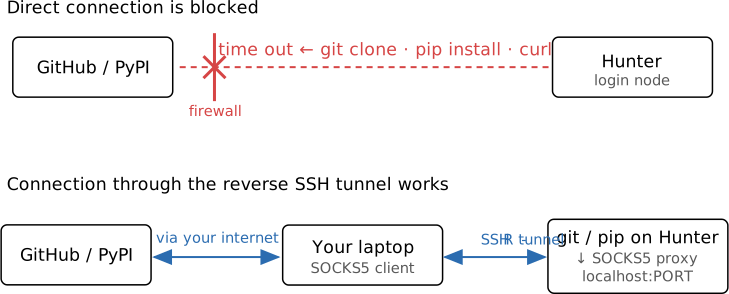
No Internet on Hunter → Use a Reverse Tunnel
Hunter’s outgoing firewall blocks direct access, so
git clone, pip install, and curl
time out. A reverse SSH tunnel (ssh -R)
lets Hunter’s outbound traffic reach a SOCKS5 proxy on
Hunter, then ride the tunnel out through your
laptop’s connection.
![]()
Use a dedicated SSH connection for the tunnel, and close it when no
longer needed.
Reference: kb.hlrs.de/platforms/index.php/SSH_Tunnel_with_Proxy
Open the Tunnel, Then Use It
1. Open it on your local
machine
Pick a port (10000–60000, unique to you):
local> MY_PROXY_PORT=XXXXX
local> ssh -R localhost:$MY_PROXY_PORT hunter
Opens a normal SSH session and a reverse SOCKS5
proxy on Hunter. It lives only as long as this session.
The proxy is reachable by all users on the login
node. Keep it open only while needed.
2. Use it on Hunter
Point the proxy variables at the same port:
hunter> MY_PROXY_PORT=XXXXX
hunter> export https_proxy=socks5://localhost:$MY_PROXY_PORT
hunter> export http_proxy=$https_proxy
Test it:
hunter> curl ifconfig.me # shows YOUR laptop's IP
Most tools (git, pip, curl, wget) honor these; some need
--proxy $https_proxy.
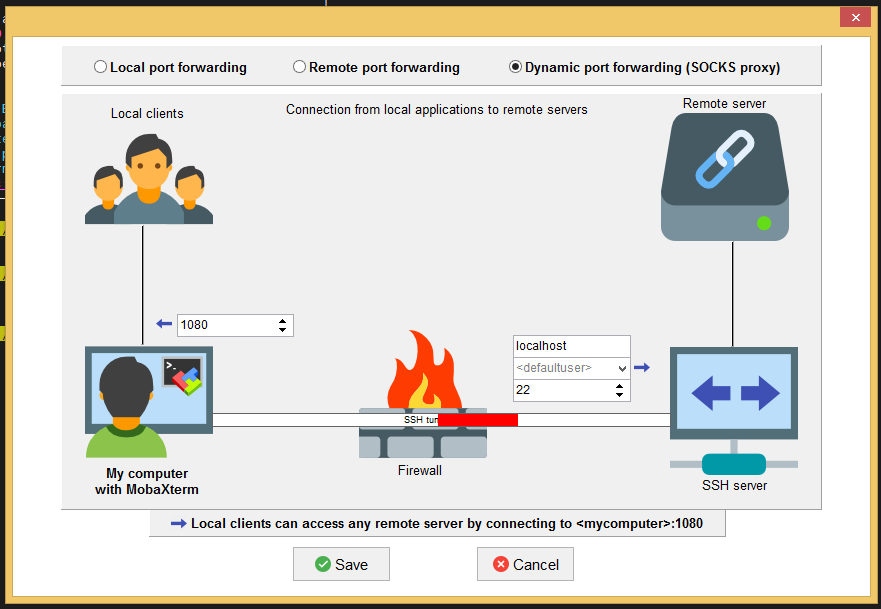
Tunneling with MobaXterm
MobaXterm configures tunnels through its GUI, not command-line flags.
The reverse tunnel also needs a local SSH daemon, which MobaXterm won’t
start for you.
Once, in a local MobaXterm terminal:
local> touch /etc/sshd_config
local> ssh-keygen -A
Each session:
- Start the daemon:
sshd
- In Tools → MobaSSHTunnel, create two tunnels:
- Remote port forwarding for the SSH connection
- Dynamic port forwarding (SOCKS proxy) for outbound
traffic
- Start both tunnels, then open the session
- On Hunter, set the proxy variables as on the previous slide
Detailed guide: kb.hlrs.de/platforms/index.php/Secure_Shell_ssh
![]()
If the SOCKS side “just doesn’t work,” the missing sshd
is the usual cause.
Track Your Projects with Git
Why, on a cluster:
- Cluster filesystems are not backed up. A git remote
repository is your safety net for code
- Recover an old version after a bad change
- Sync the same code between your laptop and Hunter
Track: source code, job scripts, configs, small
inputs, plotting scripts
Don’t track: simulation output, large data,
binaries, build dirs; those belong in a workspace or
HPSS (use a .gitignore)
The local loop:
$ git init                 # start tracking a folder
$ git status               # which files changed?
$ git diff                 # what changed?
$ git add jobscript.pbs    # stage a change
$ git commit -m "Add MI300A jobscript"
$ git log                  # history
The remote loop:
$ git clone <url> # copy the remote repo (once)
$ git pull        # get latest changes before you start
$ git push        # send your commits to the remote repo
Use Case: Git over HTTPS
With the proxy variables set, HTTPS git operations just work:
hunter> git clone https://github.com/jordan-hlrs/hello-jobstep-hlrs.git
hunter> git pull
hunter> git push    # needs authentication
For push, use a personal access
token, not your password. Create a dedicated
token and paste it when git prompts:
GitHub
| GitLab
| Codeberg
Make it read-only if you only clone/pull, and scope
it to the repos Hunter needs (GitHub: fine-grained
tokens).
Otherwise a leaked token with write access would let an attacker push
malicious code to your repositories. A dedicated token can be revoked
without touching your other access.
Use Case: Git over SSH
For SSH-protocol URLs (git@github.com:user/project.git),
the proxy variables aren’t enough, SSH itself must route through the
tunnel.
Setup, once:
- Create a dedicated key on Hunter
(
ssh-keygen -t ed25519 -f ~/.ssh/repo_from_hunter)
- Create an entry in
~/.ssh/config
- Register the public key with GitHub/GitLab
- Clone (tunnel must be open).
Add the key as a Deploy key on the hosting platform
(with read-only rights) and/or add a passphrase. Otherwise, a leaked key
with full git authorization would allow an attacker to push malicious
code to your git repositories.
Add to ~/.ssh/config on Hunter (replace
XXXXX
with your port):
Host github.com
  ProxyCommand  ncat %h %p --proxy localhost:XXXXX \
                            --proxy-type=socks5
  IdentityFile  ~/.ssh/repo_from_hunter
  PasswordAuthentication no
Clone with:
hunter> git clone \
  git@github.com:jordan-hlrs/hello-jobstep-hlrs.git
Use Case: Python Packages with pip
pip honors the proxy variables, but only if PySocks
is installed.
One-time: ensure PySocks
Check whether SOCKS5 is supported:
hunter> python3 -c "import socks" \
  || echo "not supported"
If not, install it from the local copy on Hunter:
hunter> python3 -m pip install \
  /sw/general/x86_64/development/python/share/PySocks-1.7.1-py3-none-any.whl
Then: install as usual
With the proxy variables set:
hunter> python3 -m pip install
- In some environments you may need
--user
Software Environments
How the system decides which version of a tool to run
What “environment” means here
When you type python or gcc, the shell
finds an executable somewhere on $PATH and runs
it. Different choices on $PATH give you different versions
of the same tool, with different libraries and different compatibility
constraints.
An environment is a coordinated set of these
choices: a PATH, a library search path, environment variables, and
possibly a Python or software stack, all loaded together.
Why Use Environments
Three problems environments solve:
Reproducibility. Your code today depends on specific
versions of NumPy, PyTorch, MPI, and CUDA. In six months those versions
will have changed. An environment lets you pin the exact versions, so
the code that worked today still works later.
Isolation. Project A needs PyTorch 2.0; project B
needs PyTorch 2.5. Without environments, installing one breaks the
other. With environments, each project gets its own.
Sharing. Handing your work to a colleague becomes
“activate this environment” instead of “good luck installing 30 packages
in the right order.”
Environments are the mechanism that lets a single user run many
projects on a shared system without conflicts. Without them, every
install is a small bet that you are not breaking something else.
Python Environments on Hunter
Hunter provides two Python convenience modules with HPC-optimized
packages (NumPy, SciPy, mpi4py, dask):
cray-python: vendor-provided, tuned for Hunterpython: cray-python plus common
extras
For project packages, make a venv with
--system-site-packages so you inherit the
optimized builds.
Order matters: module first, then activate.
Every new shell or job script must do both.
$ module load cray-python      # or `python`
$ python3 -m venv --system-site-packages my_env
$ source my_env/bin/activate

# needs the tunnel + proxy vars:
$ python3 -m pip install -r requirements.txt
When You Outgrow Convenience Modules
The cray-python and python modules cover
common cases. They become limiting when:
- Your dependency tree conflicts with the pre-installed package
versions
- You need a Python version not provided by the modules
- You want full control over every package for reproducibility
For these cases, install micromamba in your home
directory (needs internet: open the
tunnel and set the proxy variables first):
$ curl -L https://micro.mamba.pm/api/micromamba/linux-64/latest \
       -o micromamba.tar.bz2   # needs the SSH tunnel + proxy vars
$ tar -xvjf micromamba.tar.bz2 bin/micromamba
$ export MAMBA_ROOT_PREFIX=$HOME/micromamba
$ eval "$(./bin/micromamba shell hook -s posix)"
$ micromamba create -n myproject python=3.11 -c conda-forge
$ micromamba activate myproject
$ pip install -r requirements.txt
Step-by-step instructions: kb.hlrs.de/platforms/index.php/Using_micromamba_on_Vulcan
Containers
A container bundles software with its dependencies
into a portable image that runs the same regardless of the host’s
libraries.
Good for:
- Reproducibility beyond venvs (includes the OS userspace, not just
Python)
- Sharing a complete environment
- Pre-built scientific images (NGC, BioContainers)
Caveat: portability holds for userspace-only
software. GPU and high-performance MPI need the container’s libraries to
match the host’s driver and interconnect — which limits it.
At HLRS:
- Vulcan: udocker, NVIDIA GPU support tested
- Hunter: MI300A support is limited, check the KB
first
Build locally, run on the cluster: build with Docker
on your own machine, then scp the image to your workspace.
You don’t build on the cluster.
See the wiki on containers
on Vulcan
Cluster-Setup-and-Transfer
You may skip exercises depending on your available time or
tools that you need on the cluster


 https://kb.hlrs.de/platforms/index.php/Storage_(Hunter)
+ https://kb.hlrs.de/platforms/index.php/Storage_usage_policy
https://kb.hlrs.de/platforms/index.php/Storage_(Hunter)
+ https://kb.hlrs.de/platforms/index.php/Storage_usage_policy