| Time | Min | Topic | Format |
|---|---|---|---|
| 09:00 | 15 | Welcome & Course Overview | Lecture |
| 09:15 | 65 | SSH & Bash Basics | Lecture |
| 10:20 | 30 | Break | — |
| 10:50 | 130 | SSH & Unix Shell Basics | Hands-on |
| 13:00 | End |
| Time | Min | Topic | Format |
|---|---|---|---|
| 09:00 | 15 | Quiz: Day 2 | Quiz |
| 09:15 | 15 | Module & Programming Environment | Lecture |
| 09:30 | 20 | Batch System / PBS — Overview | Lecture |
| 09:50 | 5 | Energy & Cost Awareness | Lecture |
| 09:55 | 15 | Software Available on Hunter | Lecture |
| 10:10 | 10 | Profiling (overview) | Lecture |
| 10:20 | 20 | Example: OpenFOAM® & ParaView | Lecture |
| 10:40 | 30 | Break | — |
| 11:10 | 115 | Modules & Job Submission | Hands-on |
| 13:00 | End |
| Time | Min | Topic | Format |
|---|---|---|---|
| 09:00 | 10 | Quiz: Day 1 | Quiz |
| 09:10 | 20 | Security Essentials | Lecture |
| 09:30 | 20 | HLRS Systems Overview | Lecture |
| 09:50 | 20 | Practical Pitfalls | Lecture |
| 10:10 | 15 | SSH Tunneling & Git behind the Firewall | Lecture |
| 10:25 | 15 | Software Environments & Containers | Lecture |
| 10:40 | 20 | Buffer / Q&A | — |
| 11:00 | 30 | Break | — |
| 11:30 | 90 | File Transfer & Filesystem | Hands-on |
| 13:00 | End |

Topics
Technologies

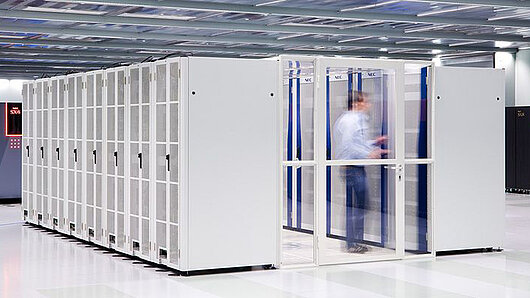
Vulcan is a heterogeneous computing platform providing specialized resources for pre-/postprocessing, visualization, GPU computing, and data analytics. Access requires a separate allocation - ask your project manager.
Detailed system overview is given on day 2.
Understanding the foundations of Linux/Unix systems

What you will be able to do after this section
Ctrl+C does not copy. It cancels the
running process.
| Platform | Action | Copy | Paste |
|---|---|---|---|
| Linux terminal | Keyboard | Ctrl+Shift+C |
Ctrl+Shift+V |
| Linux terminal | Mouse | Select text | Middle-click |
| MobaXterm | Keyboard | Ctrl+Insert |
Shift+Insert |
| MobaXterm | Mouse | Select text | Right-click |
| macOS | Keyboard | Cmd+C |
Cmd+V |
| Windows Terminal | Keyboard | Ctrl+C |
Ctrl+V |
| Windows Terminal | Mouse | — | Right-click |
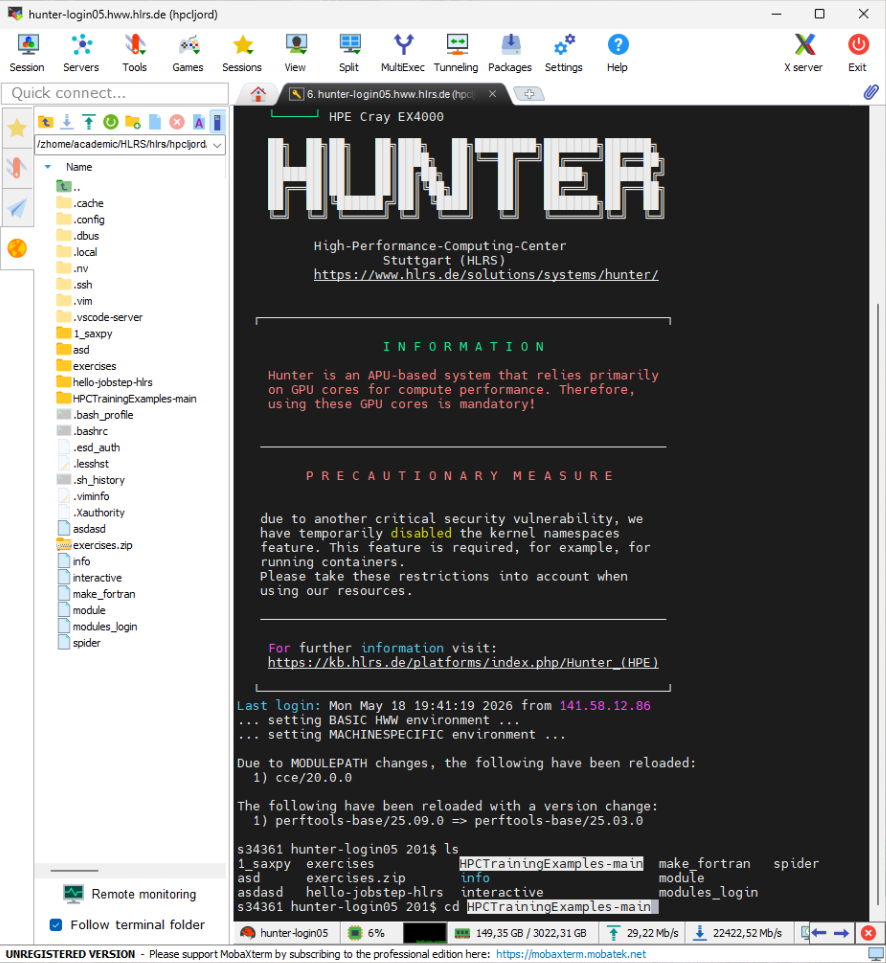
Two features that make working in a shell easier.
Press Tab to complete a command, file, or path. Press
Tab twice to see all matches.
$ cd /et<TAB> # → /etc/
$ ls /home/<TAB><TAB> # lists matches
$ ssh hu<TAB> # → hunter (from SSH config)Faster than typing, and it prevents typos.
| Key | Action |
|---|---|
↑ / ↓ |
Previous / next command |
Ctrl+R |
Search history |
history |
Show full history |
!! |
Repeat last command |
!$ |
Reuse the last argument |
Ctrl+R, type a few letters, press Enter to
run or → to edit.
Log in to a remote system over the network
scp: Secure Copy
$ scp local_file.txt username@hunter-login05.hww.hlrs.de:path/
$ scp local_file.txt username@hunter-login05.hww.hlrs.de:/absolute/path/
$ scp -r username@hunter-login05.hww.hlrs.de:results ./rsync: Efficient Synchronisation
Only transfers changed files, which is ideal for large datasets. Note: requires a Unix environment on Windows (e.g. MobaXterm, WSL).
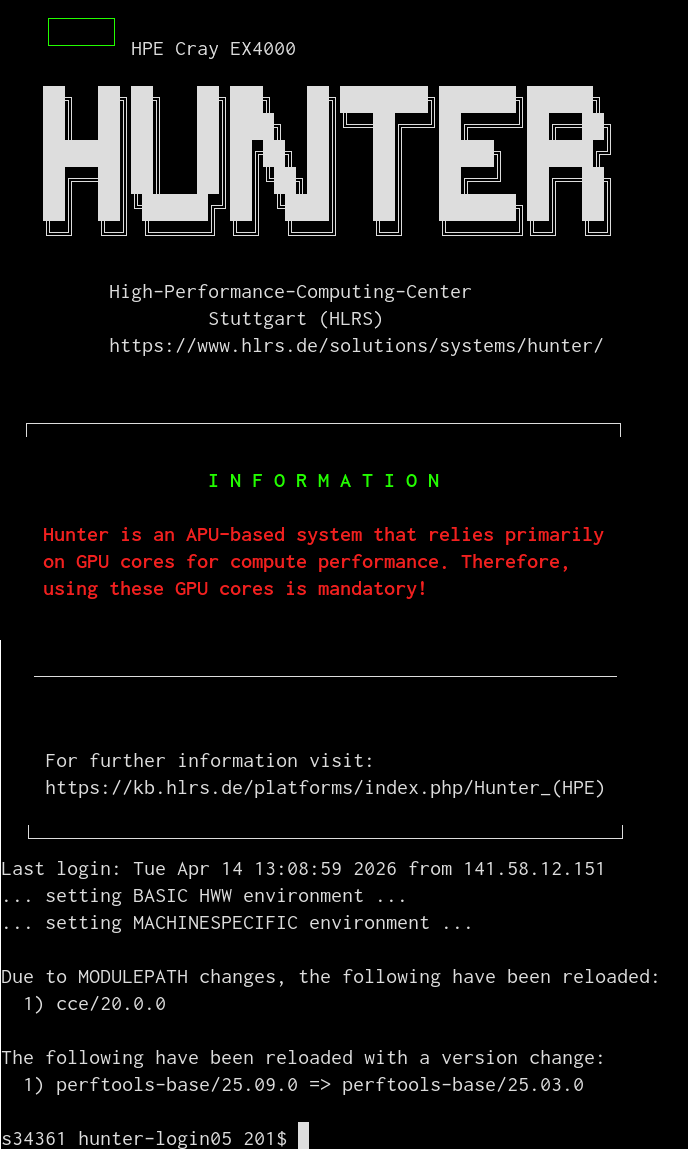
Available login nodes:
Two-factor authentication remains valid for one hour on a specific login node.
Stored in ~/.ssh/config (Linux/Mac/WSL/MobaXterm) or
C:\Users\<username>\.ssh\config (Windows OpenSSH)
Linux/Mac/MobaXterm
Host hunter
HostName hunter-login05.hww.hlrs.de
User <your_HLRS_login>
IdentityFile ~/.ssh/HLRS_cs_YYYYMMDD
IdentitiesOnly yes
PreferredAuthentications publickey,keyboard-interactive
ServerAliveInterval 60
ServerAliveCountMax 5Once configured, connect with just:
Windows (OpenSSH)
Host hunter
HostName hunter-login05.hww.hlrs.de
User <your_HLRS_login>
IdentityFile C:\Users\<username>\.ssh\HLRS_cs_YYYYMMDD
IdentitiesOnly yes
PreferredAuthentications publickey,keyboard-interactive
ServerAliveInterval 60
ServerAliveCountMax 5MobaXterm: do this before the Linux steps:
ServerAliveInterval 60 - sends a keepalive every 60
seconds
ServerAliveCountMax 5 - drops connection after 5 missed
responses (~5 min)
IdentitiesOnly yes - only use the specified key, don’t try
others
PreferredAuthentications publickey,keyboard-interactive -
try key-based login first, fall back to keyboard-interactive
(OTP/challenge-response); skips plain password authentication, which
HLRS does not support
Single-rooted, inverted tree starting at /
/ (root)
├── bin Commands
├── etc Configuration
├── home User home dirs
│ ├── user1
│ └── user2
├── usr Programs
├── var Logs, spool
├── tmp Temporary files
└── opt Add-on software
Absolute: start at /, always
unambiguous:
/home/user/documents/file.txt
Relative: relative to current directory:
documents/file.txt
| Shortcut | Meaning |
|---|---|
. |
Current directory |
.. |
Parent directory |
~ |
Home directory |
- |
Previous directory |
cat: Print Entire Fileless: Scrollable
Viewerhead /
tail: First or Last Lines$ head -n 20 file.txt # First 20 lines
$ tail -n 10 output.log # Last 10 lines
$ tail -f output.log # Follow file in real timetouch:
Create Empty File (or update timestamp)mkdir: Make Directorycp: Copymv: Move or Renamerm: RemoveCareful: There is no recycle bin on the command line!
The shell expands these characters in paths to match multiple files before running the command.
| Pattern | Matches | Example |
|---|---|---|
* |
any sequence (except leading .) |
*.txt matches notes.txt |
? |
any single character | file?.log matches file1.log |
[abc] |
any one of the listed characters | [0-9]*.csv starts with digit |
{a,b} |
brace expansion | {src,test}/*.py |
$ ls *.csv # all CSV files in current dir
$ rm tmp_* # remove all files starting with tmp_
$ cp data/*.txt backup/ # copy all .txt files
$ ls run_?.log # single character: run_1.log, run_a.log
$ ls sample_[0-9].dat # character class: sample_0.dat ... sample_9.dat
$ mkdir {input,output,logs} # brace expansion: creates three directoriesThese are not regular expressions. They are filename patterns evaluated by the shell.
nano (Vulcan only)A beginner-friendly terminal text editor.
Key bindings (^ means Ctrl, displayed at
the bottom of the screen):
| Key | Action |
|---|---|
Ctrl+O |
Save (write out) |
Ctrl+X |
Exit |
Ctrl+W |
Search |
Ctrl+K |
Cut a line |
Ctrl+U |
Paste |
Ctrl+G |
Help |
Alternatives: vim and
emacs are also available but have steeper learning
curves.
vimA powerful terminal text editor available on virtually every Unix system.
vim is modal — keys behave differently
depending on the current mode:
| Mode | Enter with | Purpose |
|---|---|---|
| Normal | Esc |
Navigate, delete, copy |
| Insert | i |
Type text |
| Command | : |
Save, quit, search |
| Key | Mode | Action |
|---|---|---|
i |
Normal | Enter insert mode |
Esc |
Insert | Return to normal |
:w |
Command | Save |
:q |
Command | Quit |
:wq |
Command | Save and quit |
:q! |
Command | Quit without saving |
dd |
Normal | Delete line |
yy / p |
Normal | Copy / paste line |
/pattern |
Normal | Search |
n / N |
Normal | Next / prev match |
v |
Normal | select text |
Tip: If you get stuck, press Esc a few
times and type :q! to exit without saving.
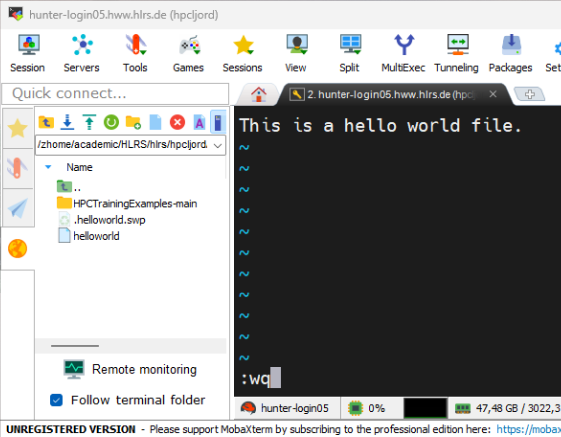
find: Search for Files$ find . -name "*.csv" # Find by name pattern
$ find /home -type d -name "results" # Find directories only
$ find . -name "*.log" 2>/dev/null # Suppress permission errorswhich: Locate a
Commandman and
--help: Documentation$ man grep # Open the manual for grep
$ man -k search # Search for commands by keyword
$ ls --help # Quick built-in help (most commands support it)Press q to quit man.
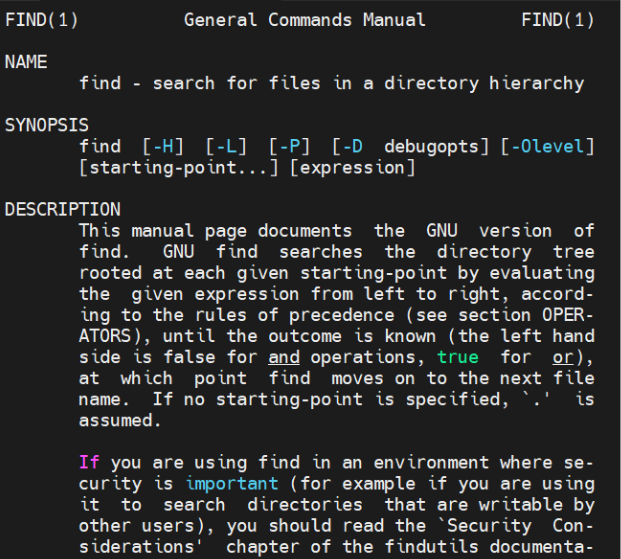
Output of man find (Optionality is indicated by square
brackets []): 
Each file has three permission groups: owner, group, others
| Symbol | Meaning | Value |
|---|---|---|
r |
Read | 4 |
w |
Write | 2 |
x |
Execute | 1 |
ls -l Outputdrwxr-xr-x 2 user group 4096 Mar 27 14:32 my_dir
│└┬┘└┬┘└┬┘
│ │ │ └── others: r-x (5)
│ │ └── group: r-x (5)
│ └── owner: rwx (7)
└── file type (- = file, d = directory)
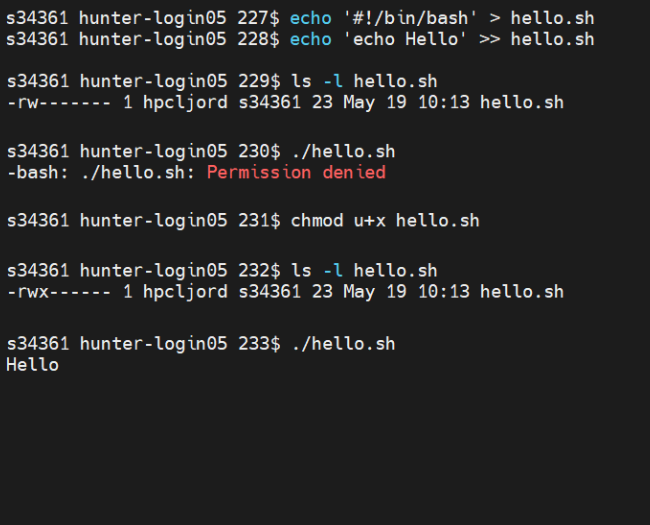
$ echo '#!/bin/bash' > hello.sh # shebang: which interpreter to use
$ echo 'echo Hello' >> hello.sh # the actual command
$ chmod u+x hello.sh # make it executable
$ ./hello.sh
Hello
chmodSymbolic notation:
| Target | Meaning |
|---|---|
u |
user (owner) |
g |
group |
o |
others |
a |
all (ugo) |
| Operator | Effect |
|---|---|
+ |
add permission |
- |
remove permission |
= |
set exactly |
$ chmod u+x script.sh # add execute for owner
$ chmod go-w file.txt # remove write for group & others
$ chmod -R g+rX shared_data/ # +r on all, +x on directories only (capital X)
$ chmod -R g+rx shared_data/ # AVOID on data: marks every file executableUppercase X adds execute only to directories and
already-executable files.
chgrp +
chmodchgrp sets which group has access;
chmod sets what kind.
$ id # your groups
$ chgrp -R mygroup shared_data/ # assign group
$ chmod g+s shared_data/ # new files inherit the group
$ chmod -R g+rX shared_data/ # group read + traverse
$ namei -l $PWD/shared_data/ # check the whole pathNew files get your primary group automatically, so
if you and your colleague already share a group, chmod
alone is enough.
Every parent directory must be traversable (x) by the
group, or they can’t reach the folder.
Manual sharing is not automatic: rerun
chmod as new files are added.
ws_shareThe right way to share a workspace with colleagues
on HLRS systems. Ask each colleague for their username
(whoami).
$ ws_share share my_workspace alice # grant read access
$ ws_share share my_workspace bob
$ ws_share list my_workspace # who has access
$ ws_share unshare my_workspace bob # revoke one
$ ws_share unshare-all my_workspace # revoke allOn Hunter, ws_share automatically
covers newly created files, so no re-running needed.
Dynamic values that affect processes running on a system
| Variable | Purpose |
|---|---|
PATH |
Directories searched for executables |
HOME |
User’s home directory |
USER |
Current username |
SHELL |
Path to current shell |
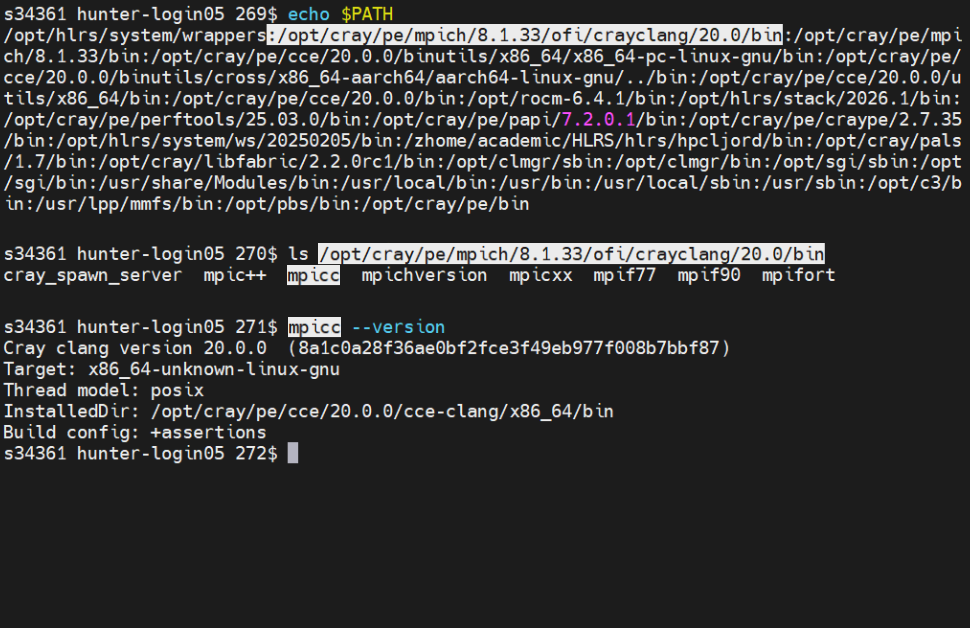
$ echo $PATH # View a variable
$ export MY_VAR="hello" # Set a variable
$ export PATH=$PATH:/my/custom/bin # Extend PATHAdd exports to ~/.bashrc to make them persistent across
sessions.
The default $PATH on hunter:
Spaces separate command arguments. Quote when arguments contain spaces or special characters.
| Quotes | Behavior |
|---|---|
'single' |
Literal, no expansion at all |
"double" |
Variable expansion ($VAR), no
globbing/word-split |
| (none) | Word-splitting, glob expansion, variable expansion |
\char |
Escape one character
(Hello\ World = "Hello World") |
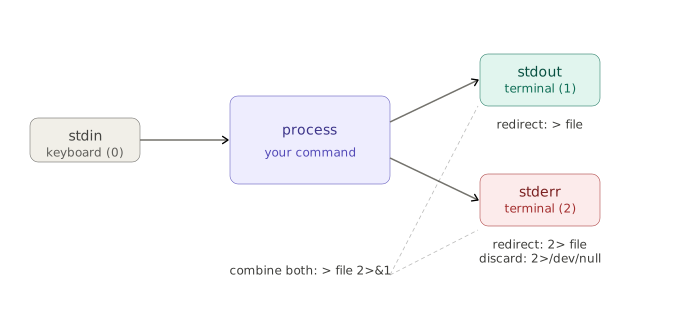
Every command has three I/O streams:
| ID | Name | Default |
|---|---|---|
0 |
stdin (input) | keyboard |
1 |
stdout (output) | terminal |
2 |
stderr (errors) | terminal |
stdout and stderr both go to the terminal but travel separately, so we can redirect them independently.
$ ls /etc /nonexistent > out.txt # only stdout → file
$ ls /etc /nonexistent 2> err.txt # only stderr → file
$ ls /etc /nonexistent > all.txt 2>&1 # both → same file
$ command < input.txt # stdin from file/dev/null: the discard
bin/dev/null is a special file that discards everything
written to it:
Combine it
all:$ command < input.txt > output.txt 2> error.txt

|Sends stdout of one command as stdin to the next:
$ ls -l | grep ".txt" # filter for .txt files
$ cat job.out | grep "ERROR" | wc -l # count errors in job output
$ ls -lh *.log | sort -k5 -h | tail -n 5 # largest 5 log files| Operator | Function | Example | Note |
|---|---|---|---|
> |
Redirect stdout to file | echo "hi" > file.txt |
overwrites! |
>> |
Append stdout to file | echo "hi" >> file.txt |
|
&> |
Redirect both streams together | cmd &> all.log |
overwrites! |
Feed command output as if it were a file:
| Operator | Behaviour | Example |
|---|---|---|
; |
Sequential, regardless of success | cd /data; ls -l |
&& |
Second runs only if first succeeds | mkdir data && cd data |
|| |
Second runs only if first fails | cd dir || mkdir dir |
tee: write and
watch simultaneouslytee writes output to a file while still printing to the
terminal:
$ ./simulation | tee output.log # see output AND save to file
$ ./simulation | tee -a output.log # append instead of overwriteUseful when you want to monitor a long-running job live but also keep a log.
grep & Regular Expressionsgrep: Search Text
for Patterns$ grep "error" logfile.txt # lines containing "error"
$ grep -i "warning" logfile.txt # case-insensitive
$ grep -v "debug" logfile.txt # lines NOT matching
$ grep -r "TODO" src/ # search recursively
$ grep -c "error" logfile.txt # count matching linesPatterns used by grep -E, sed, and
awk:
| Symbol | Meaning | Example |
|---|---|---|
. |
Any single character | g.t matches
got |
* |
Zero or more | ab*c matches
ac |
+ |
One or more (ERE) | ab+c matches
abc |
? |
Zero or one (ERE) | colou?r |
| |
or operator (ERE) | cat|dog |
^ |
Start of line | ^Error |
$ |
End of line | done$ |
[abc] |
Character class | [0-9] matches digit |
Use grep -E for +, ?, and
|. Regex matches text inside files; unlike globbing, which
matches filenames.
$ kill 1234 # Terminate process by PID
$ kill -9 1234 # Force kill
$ long_process & # Run in background
$ jobs # List background jobs
$ fg %1 # Bring job 1 to foregroundCtrl+C cancels the current process, Ctrl+Z
suspends it.
tar: Create &
Extract Archives$ tar -czf archive.tar.gz my_dir/ # Create compressed archive
$ tar -xzf archive.tar.gz # Extract archive
$ tar -tzf archive.tar.gz # List contents without extracting| Flag | Meaning |
|---|---|
-c |
Create archive |
-x |
Extract archive |
-z |
Compress with gzip |
-f |
Specify filename |
-t |
List contents |
-v |
Verbose output |
$ du -sh */ # size of each subdirectory
$ du -sh * | sort -hr | head -10 # top 10 largest items
$ df -h # filesystem disk space usage
$ find . -name "*.log" -size +100M # logs over 100MBwatch reruns a command at a fixed interval, useful for
monitoring job output as it grows.
Find all CSV files, count their lines, show the 5 largest.
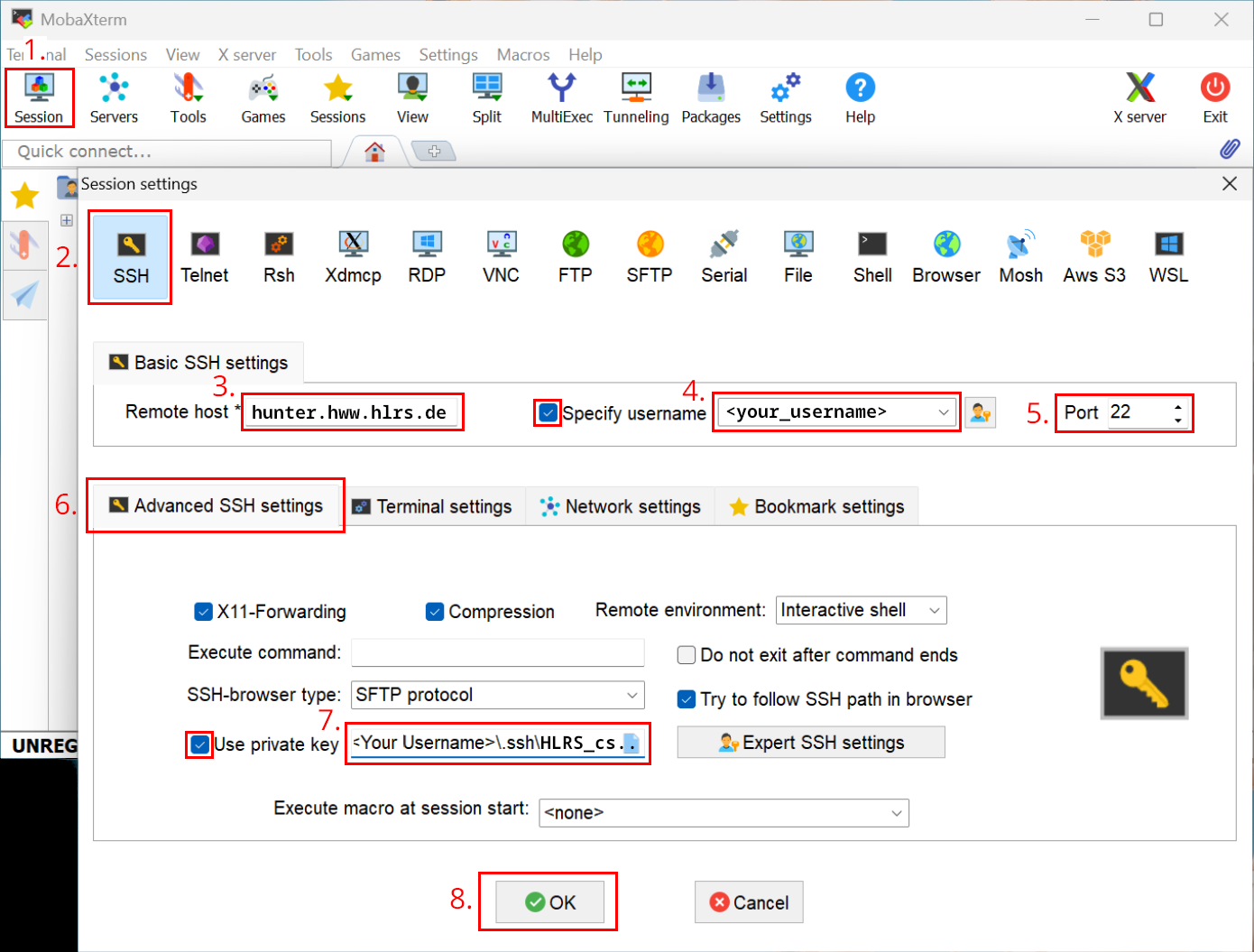
Set up your SSH connection
~/.ssh/config - see here or here for MobaXterm and connect
to the clusterWorking in a terminal
High-Performance
Computing Center
Stuttgart
Lucas Jordan
Introduction to the HLRS Systems