
Connecting via PuTTY (Windows)
PuTTY is a free SSH client for Windows. This guide will show you how to convert your private SSH key to PuTTY format and connect to the server.Step 1: Download and Install PuTTY
Download PuTTY from the official website:https://www.chiark.greenend.org.uk/~sgtatham/putty/latest.html
Download the MSI installer package for Windows and run it to install PuTTY and its utilities, including PuTTYgen which we'll need for key conversion.
Step 2: Convert Your SSH Key to PPK Format
Your SSH key file as well as your username on the cluster have the formsca50xxx
Follow these steps to convert the key file from SSH format to PuTTY format:
- Open PuTTYgen (installed with PuTTY)
-
Click
Loadand browse to your SSH key fileShow screenshot ▶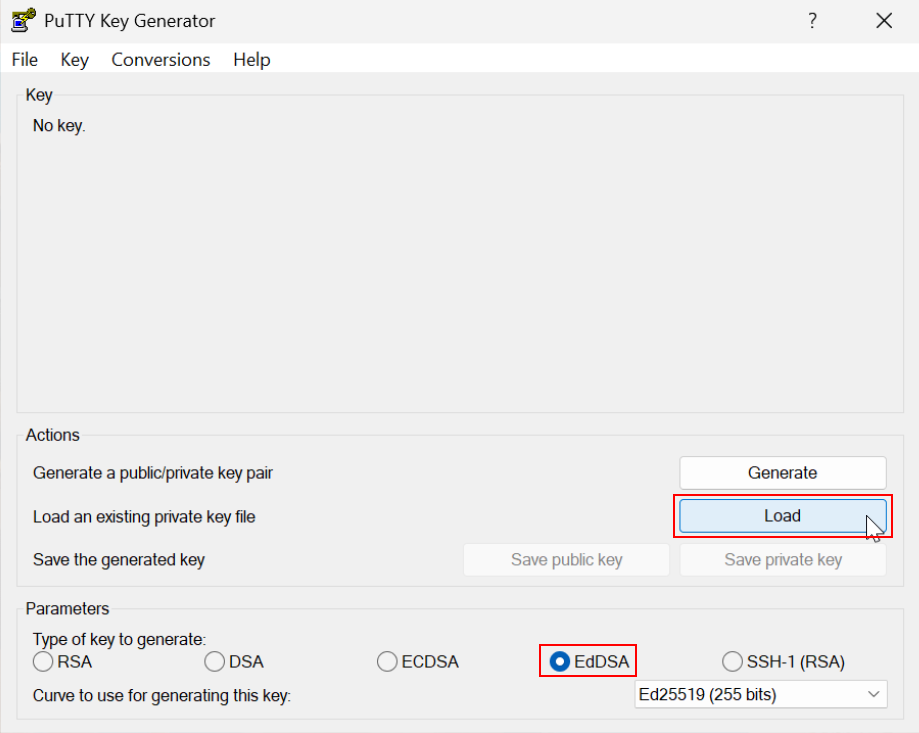
-
In the file browser, change the file filter from
PuTTY Private Key Files (*.ppk)toAll Files (*.*)to see your key fileShow screenshot ▶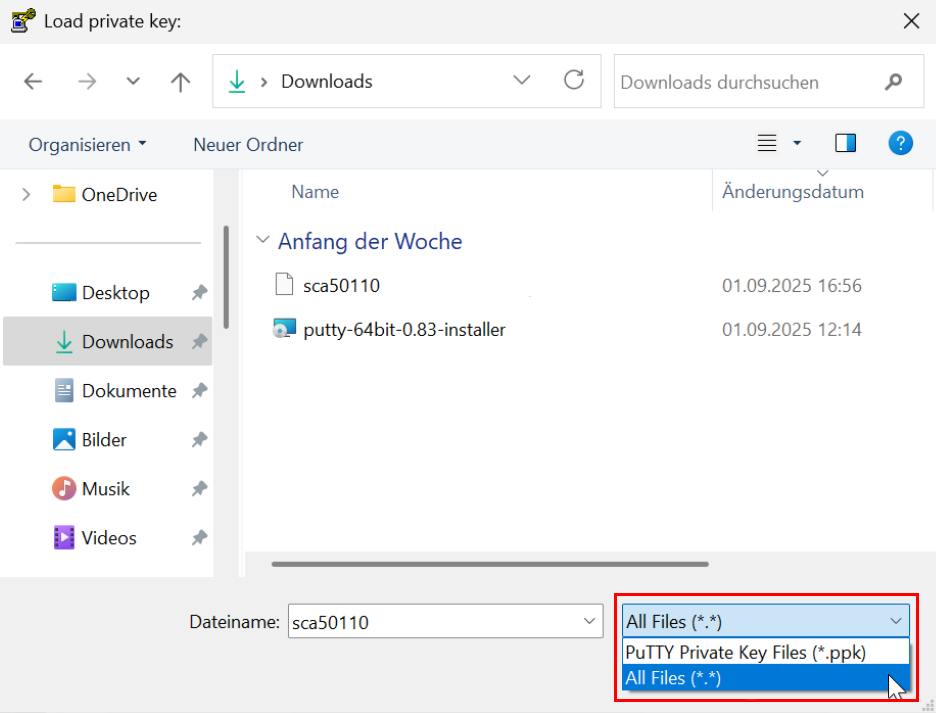
-
Select your key file and click
Open. You should see a success message. ClickOk -
Under
Parameters, choose the EdDSA option for the encryption. -
Click
Save private keyIf prompted about saving without a passphrase, clickShow screenshot ▶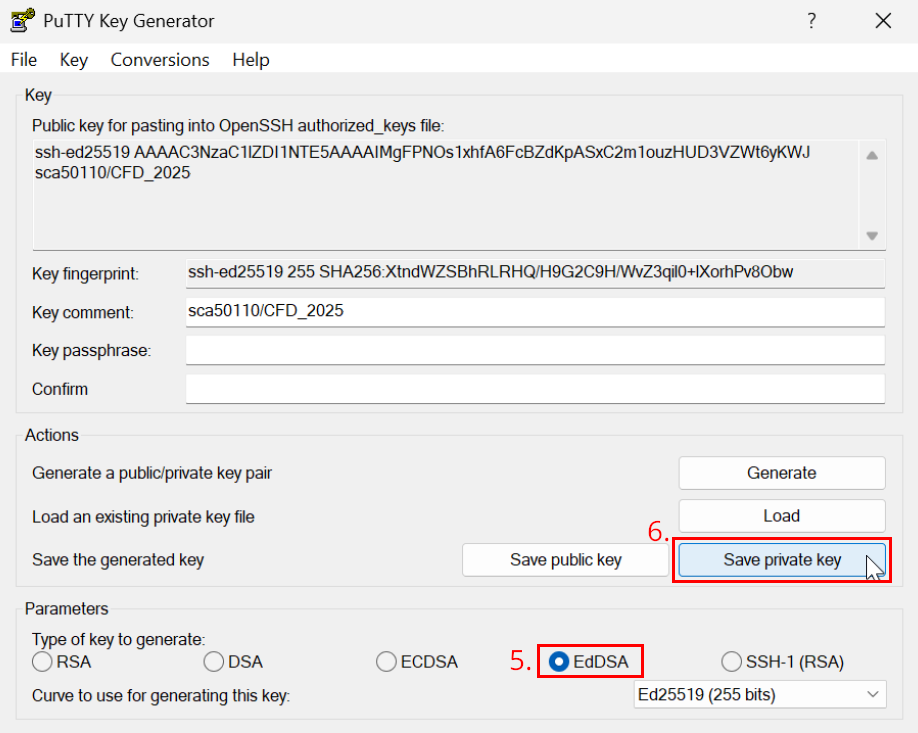
Yes(unless you want to add a passphrase for extra security) -
Save the file with a .ppk extension, for example:
sca50xxx.ppk
to your computer. The default path for SSH Keys is:C:\Users\<Your Windows username>\.ssh\
Therefore, we recommend to create and use this folder.
Step 3: Configure PuTTY Connection
- Open PuTTY
-
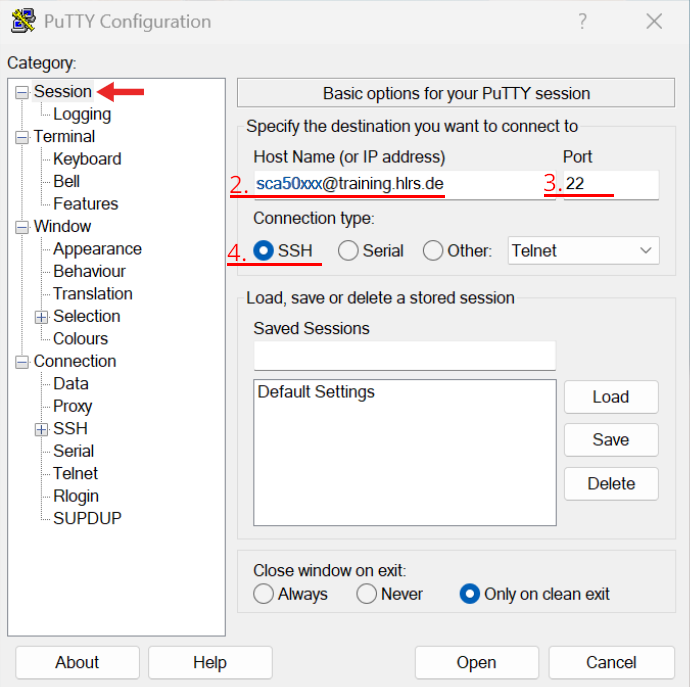
In the Host Name
field, enter your username, which is identical to the SSH key file name:
sca50xxx. Append@training.hlrs.de, so the field reads:sca50xxx@training.hlrs.de -
Make sure Port
is set to
22 -
Connection type should be SSH
Show screenshot ▶
- In the left panel, navigate to: Connection → SSH → Auth → Credentials
-
Click
Browsenext to Private key file for authentication and select your .ppk file that you created in Step 2Show screenshot ▶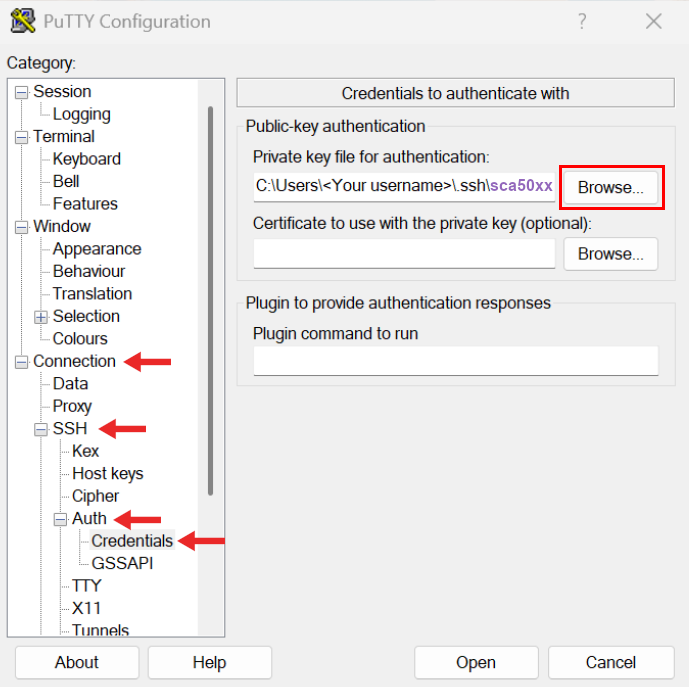
Step 4 (optional): Setup port forwarding
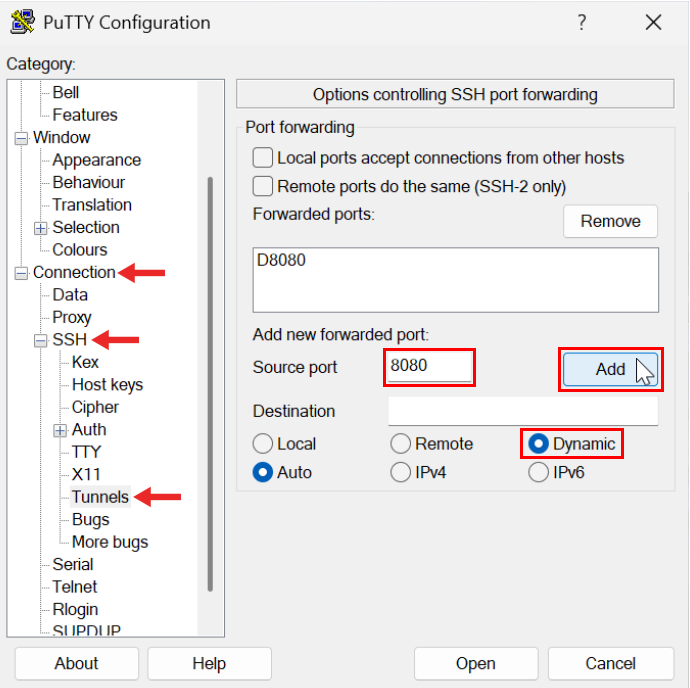
In some courses, you will run your exercises inside a jupyter notebook running on the trainings cluster. Before you can launch the notebook, you need to set up port forwarding in PuTTY. Follow these steps:- In the left panel, navigate to: Connection → SSH → Tunnels
- Move the radio button to Dynamic.
-
In the
Source port
field, enter the port number:
8080 - Click on Add. The option D8080 should now appear in the Forwarded ports list.
Show screenshot
▶
Step 5 (optional): Setup X11 forwarding
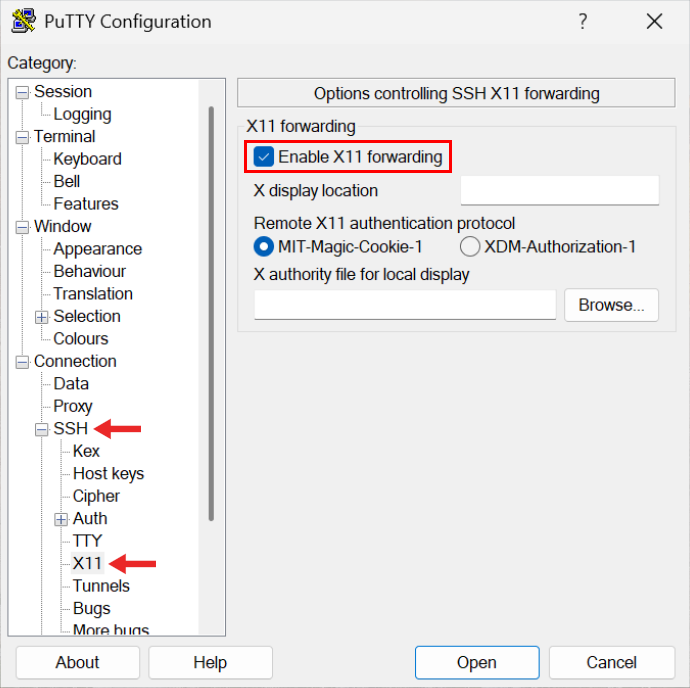
If you want to run graphical applications on the remote server, you need to set up X11 forwarding in PuTTY. Follow these steps:- In the left panel, navigate to: Connection → SSH → X11
- Check the box for Enable X11 forwarding to enable X11 forwarding
- Save your config first, see step 6! Afterwards, make sure that you have an X server running on your Windows machine before you open the connection. For the X-servers, you can use VcXsrv or Xming .
Show screenshot
▶
Step 6: Save Your Session
- Go back to the Session category (top of the left panel)
-
In the
Saved Sessions
field, enter a descriptive
<alias>.
We recommend a short version of your course name, for example cfd for the course Computational Fluid Dynamics. -
Click
SaveShow screenshot ▶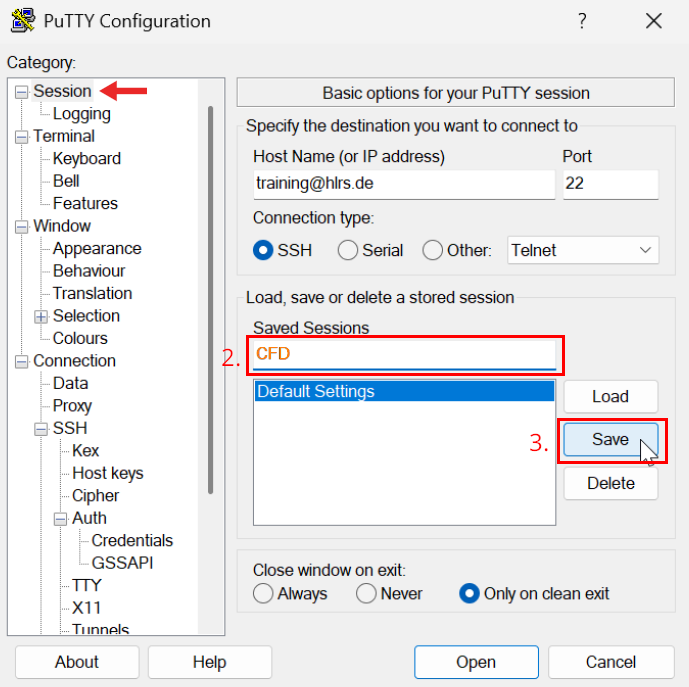
Step 7: Connect to the Server
-
Inside PuTTY, select your previously saved session and click
Openat the bottom of the window to initiate the connection -
If this is your first time connecting, you'll see a security alert about the server's host key:
The host key is not cached for this server: training.hlrs.de (port 22) The server's ssh-ed25519 key fingerprint is: ssh-ed25519 255 SHA256:19E0sAY21G6+o4nEkaqYv6qFSgOzMdf3uEzh2mBZKhI [...] -
Click either
Acceptto add the key to PuTTY's cache orConnect Once -
You should now be connected and see the command prompt:
students cl7fr1 1$ -
Type
exitto disconnect or simply close the window when you're done. - After successfully connecting to the cluster, you can start submitting compute jobs. To see how, follow the guide: Getting started on a compute cluster
Step 8 (optional): Copying data with WinSCP
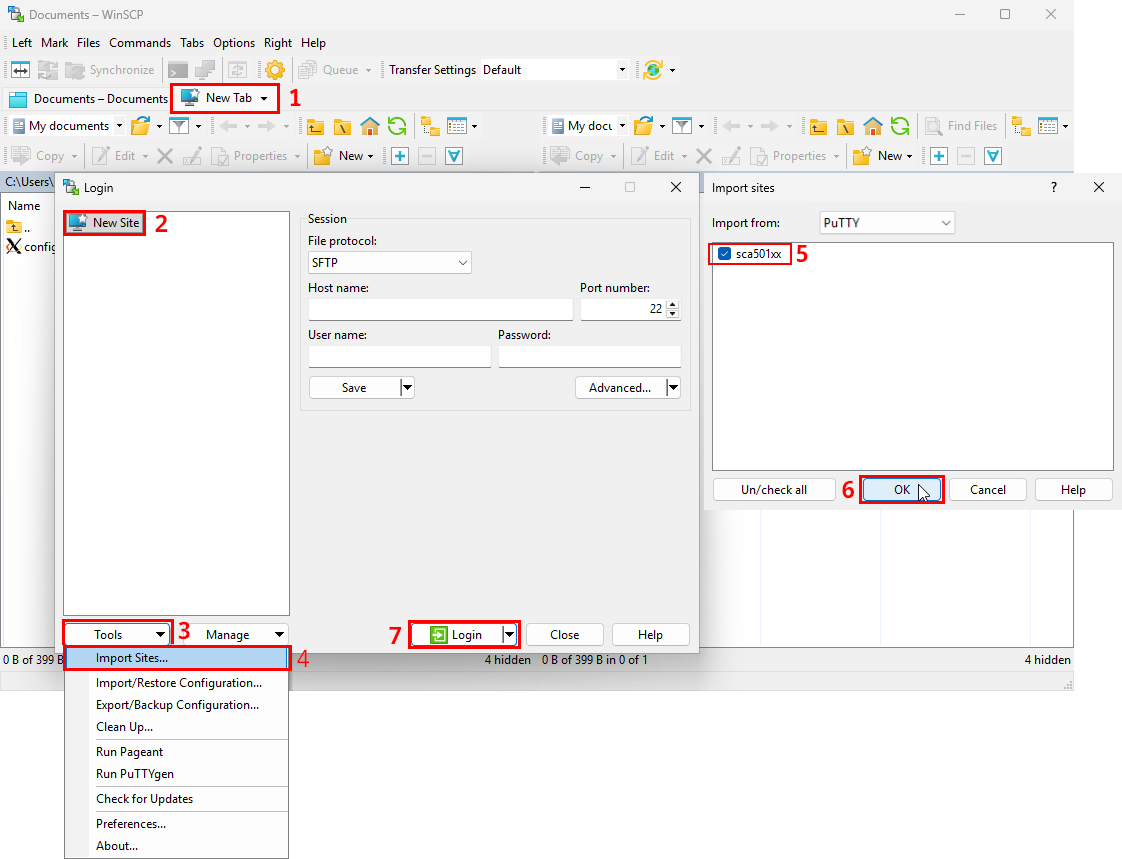
We recommend installing WinSCP to copy files between your PC and the cluster. Install it with your preferred options. Upon starting, it should prompt you to set up a New Site . If it didn't, simply click onNew Tab. Then, click on
Tools → Import Sites.... Your PuTTY connection should already be listed. Click
OK
, then
Login.
It will mount your home directory on the trainings cluster in WinSCP's file manager, allowing you to easily transfer files via drag-and-drop.
Show screenshot
▶
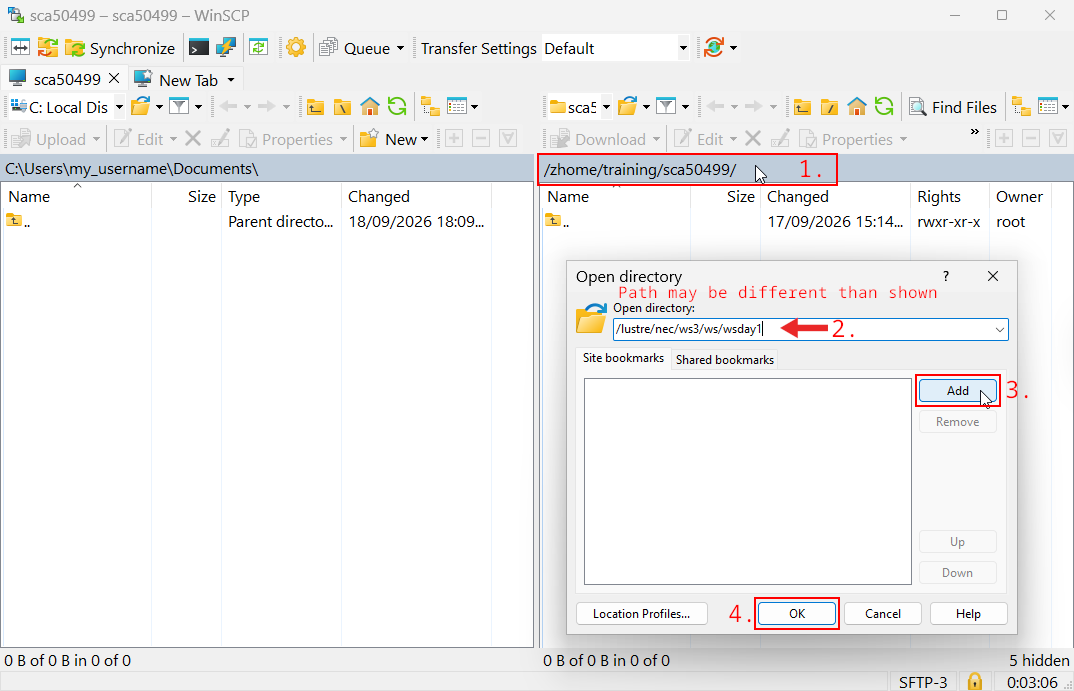
To switch to another directory on the cluster, proceed as follows:
- Double-click the current path above the right file panel (cluster).
- In the Open directory dialog, enter the desired path. It may differ from the one shown in the screenshot.
-
(Optional) Click
Add, to save the path under Site bookmarks for later use. -
Click
OK, to open the directory.Show screenshot ▶