

Connecting via MobaXterm (Windows)
MobaXterm is a SSH client for Windows that can directly use OpenSSH format keys without conversion
Step 1: Download and Install MobaXterm
-
Go to the MobaXterm website:
https://mobaxterm.mobatek.net/download.html - Download the Home Edition (free for personal use)
-
Choose either the Installer edition or Portable edition:
- Installer edition: Standard installation on your system
- Portable edition: No installation required, runs from a folder
- Extract/Install and run MobaXterm
In case you have chosen the Portable edition, make sure to first set permanent folders for the home and root directory. This is necessary to to keep your SSH keys and settings across sessions. You can do this by choosing
Settings → Configuration and then click on the small folder icons to choose directory. The screenshot below shows the default folders.
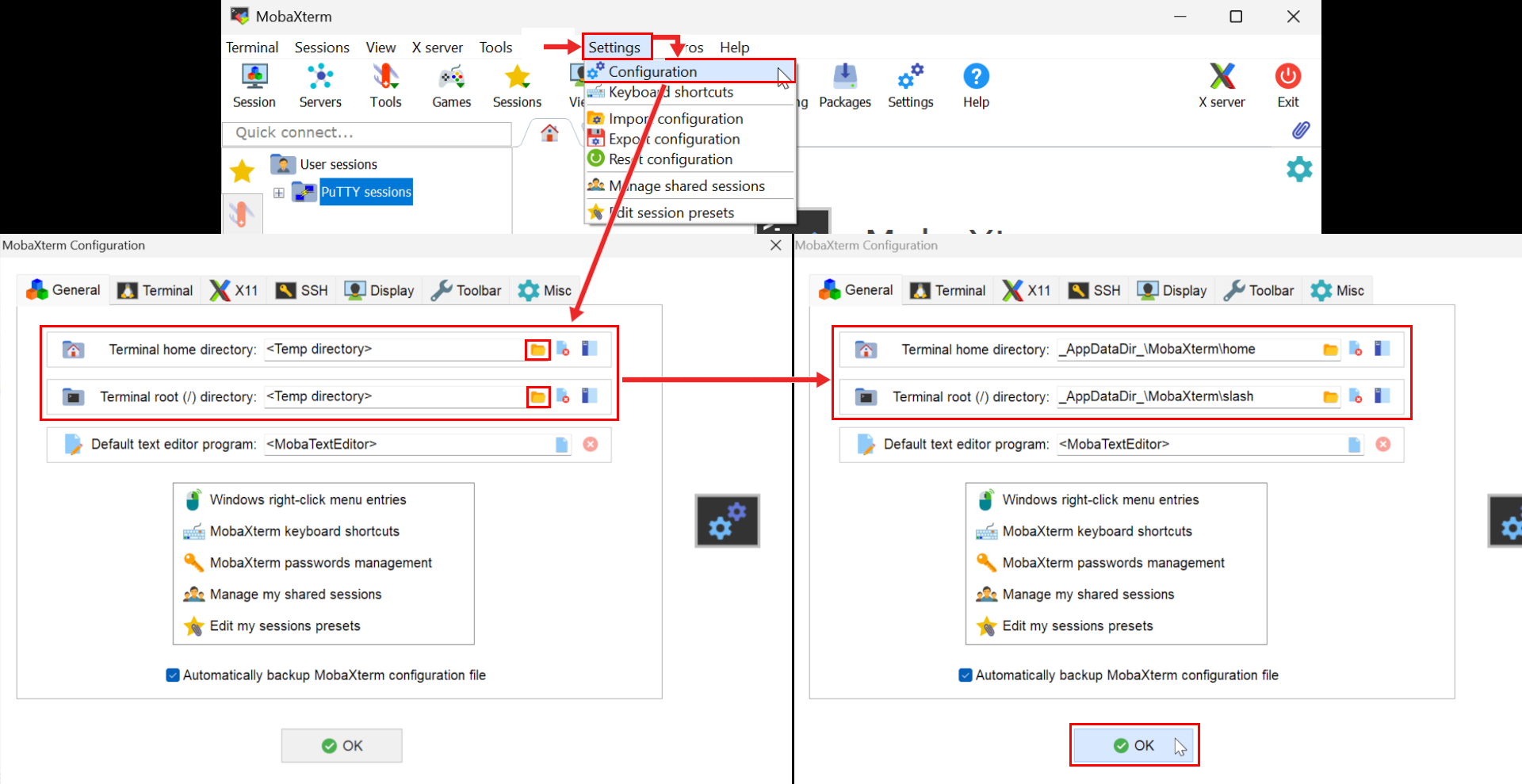 If you prefer working with a command line, you can now start MobaXterm and click
Show screenshot
▶
+ Start local terminal
in the center of the window; from there follow the
OpenSSH guide . You can find your home folder by running
open $HOME in the terminal.
Step 2: Store Your SSH Key
Save your SSH key file:sca50xxx
to your computer and note its path.
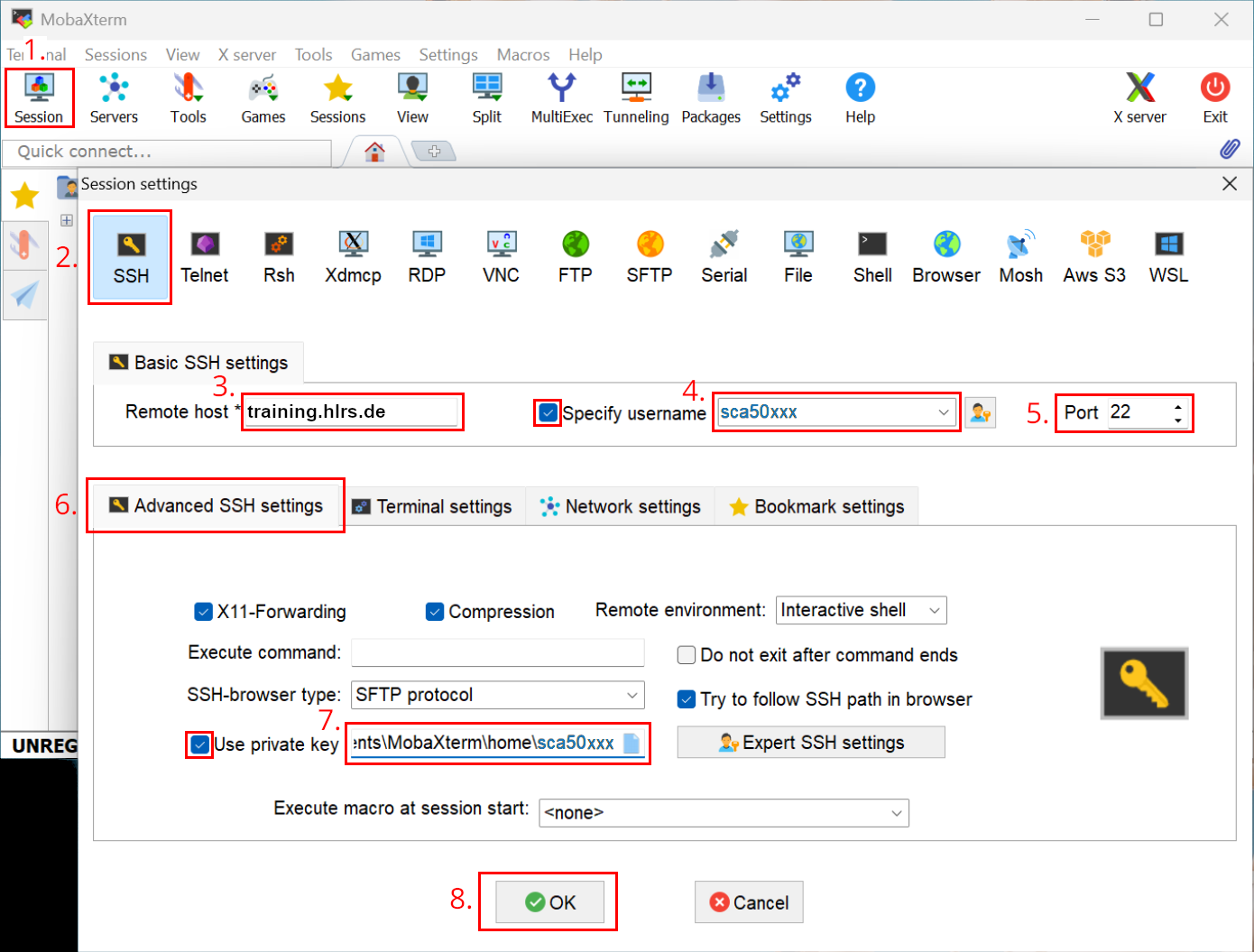
Step 3: Configure the MobaXterm session
-
Start MobaXterm and click the
Sessionbutton in the top-left corner -
In the session settings window, click
SSH - Enter:
training.hlrs.dein the field next to Remote host * - Check the box Specify username
and enter your username, which is identical to the SSH key file name:
sca50xxx. - Ensure that Port is set to
22 -
In the same SSH session settings window, click on the
Advanced SSH settingstab -
Check the box
Use private key
then click the
folder icon
next to the private key field and select your private key file.
Show screenshot ▶
-
You will connect to the server as soon as you click the
OKbutton, see Step 6
Step 4 (optional): Setup Port forwarding
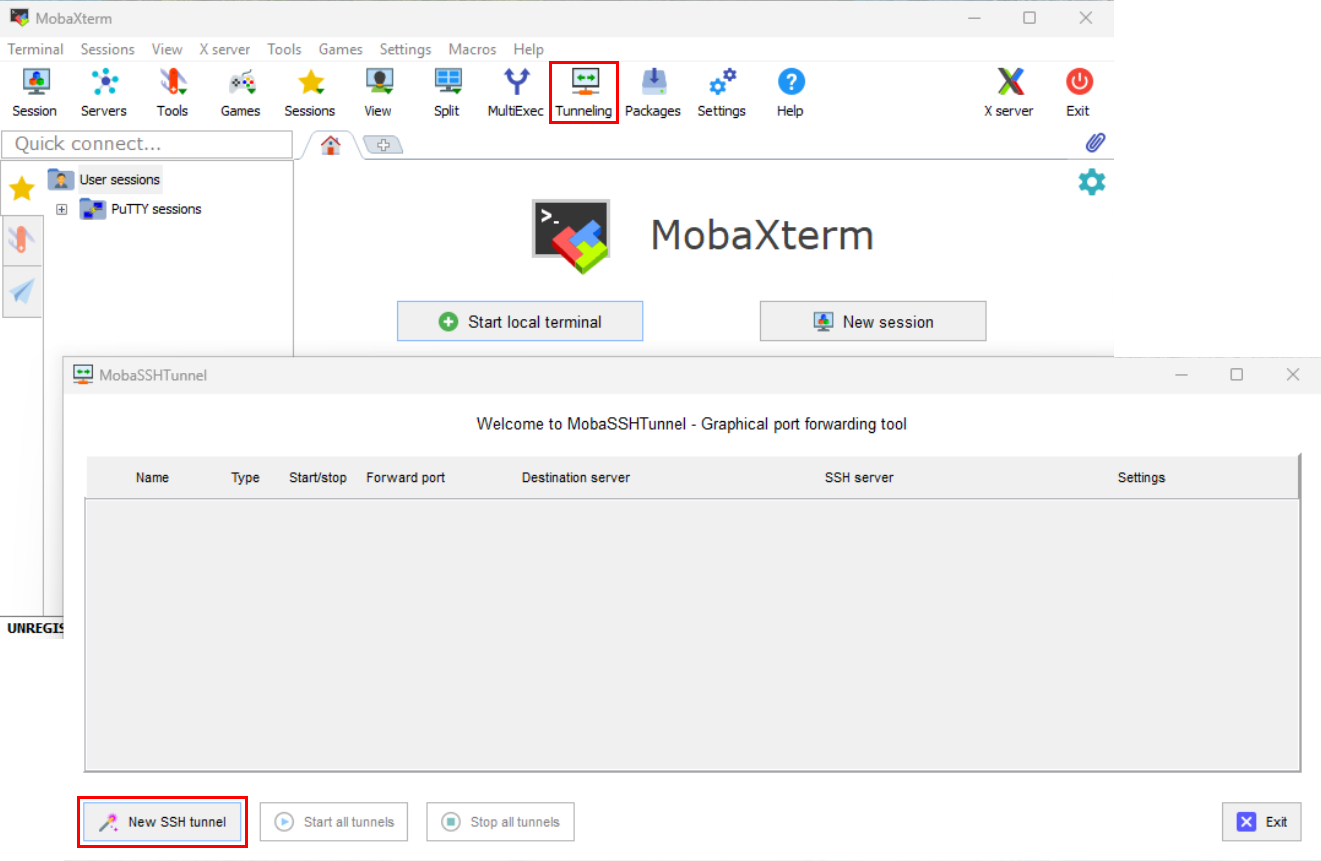
In some courses, you will run your exercises inside a jupyter notebook running on the trainings cluster. Before you can launch the notebook, you need to set up port forwarding in MobaXterm. Follow these steps:- Select Tunneling in the button bar of the main window.
-
Then, select
New SSH tunnel.
in the Tunneling window.
Show screenshot ▶
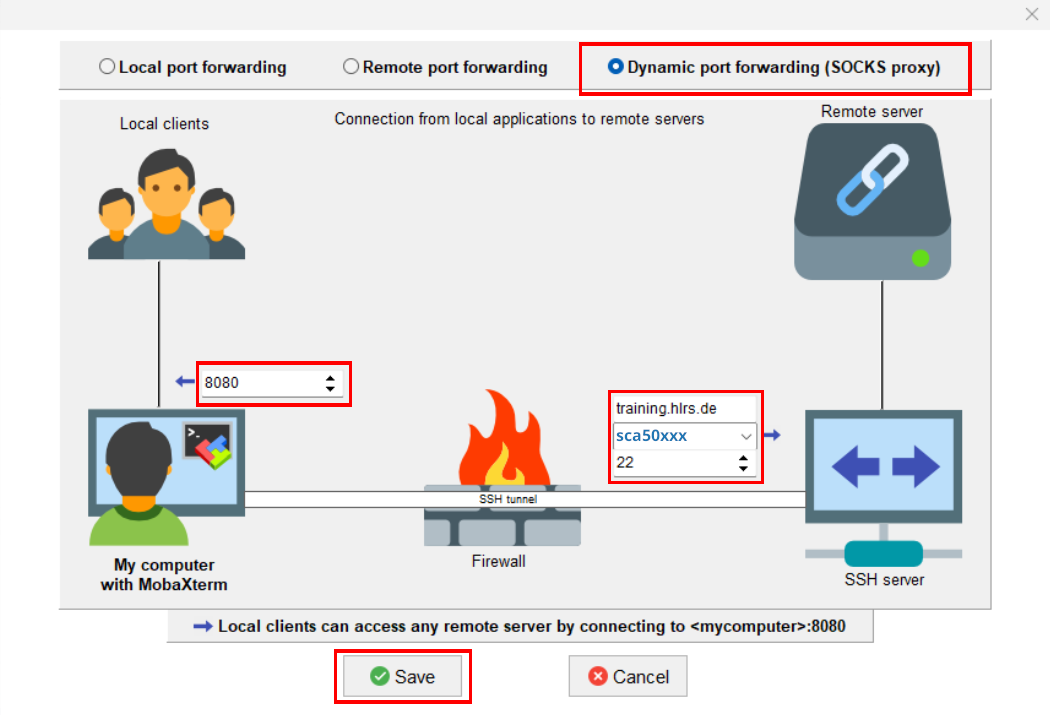
- Choose the Dynamic port forwarding (SOCKS proxy) radio button.
- Enter 8080 into the field <Forwarded port>
-
Fill the remaining fields as follows:
training.hlrs.de into the field <SSH Server>
sca50xxx into the field <SSH login>
22 into the field <SSH port> -
Then, select
Save.
to save your configuration.
Show screenshot ▶
-
Additionally, set the following options on the newly created tunnel:
(1) Enable Autoreconnect
(2) Enable Autostart
(3) Click on No SSH key selected
(4) choose your private ssh key file and
(5) click Open
(6) Click on Local network adapter
(7) open the drop-down menu Sender IP:
(8) and select 127.0.0.1
(9) click OK
(10) Choose a Name for your tunnel
(11) Click Start to activate the tunnel
(12) You may now close the window with ExitShow screenshot ▶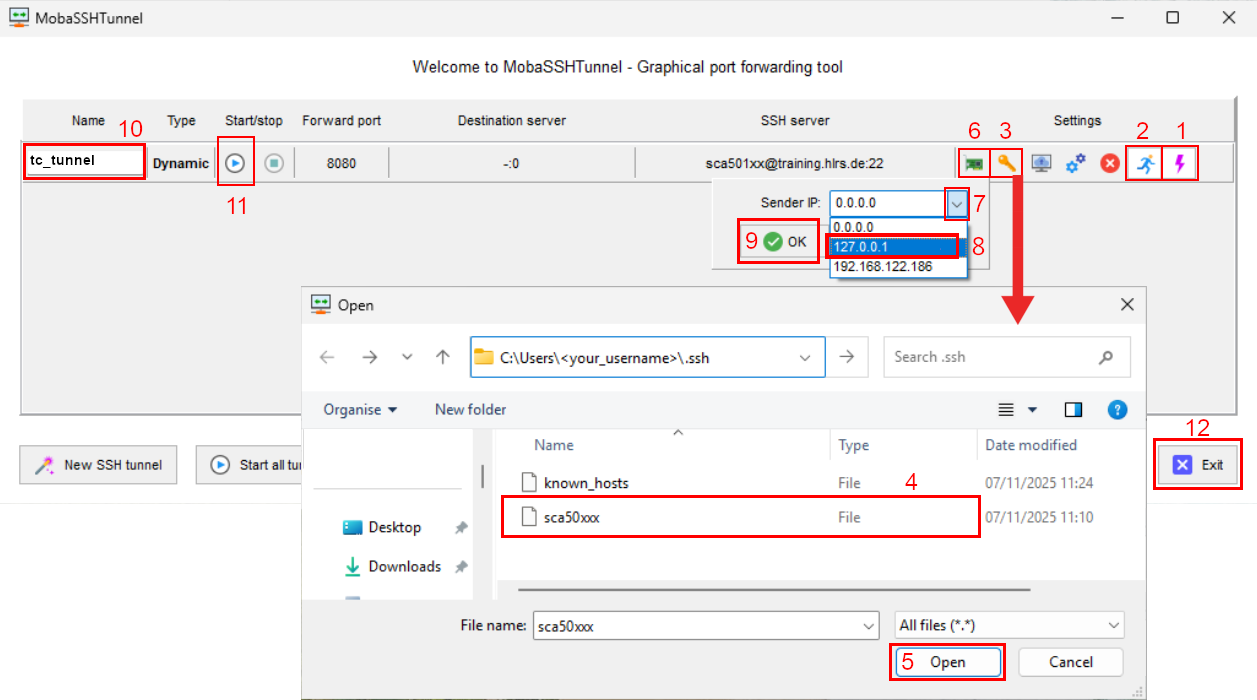
Step 5 (optional): X-forwarding
Some courses require you to run graphical applications on the training cluster, whose windows are then displayed on your local machine via X-forwarding. In MobaXterm, X-forwarding is enabled by default, so you do not have to configure anything. You can verify that it is active by hovering over the X-server icon in the top-right corner of the main window, which reports the server's status; clicking it stops or starts the server.Step 6: Connect to the Server
-
If this is your first connection, you'll see a host key verification message:
It seems to be the first time you connect to this server: the remote server identity is not yet known by MobaXterm. Press "Accept" if you trust this identity and want to carry on connecting. Press "Cancel" if you want to abandon this connection.ClickAcceptto accept and save the host key orMore info..to first verify the fingerprint of the server. It should read:Full text of host's public key ssh-ed25519 AAAAC3NzaC1lZDI1NTE5AAAAIHq6J+i0V61OxwVl9iSz+8HZG9nDtgRYm2cbXx21bYWN SHA256 fingerprint ssh-ed25519 255 SHA256:19E0sAY21G6+o4nEkaqYv6qFSgOzMdf3uEzh2mBZKhI -
You should now be connected and see the command prompt:
students cl7fr1 1$ -
To disconnect from the server, you can either:
-
Type
exitin the terminal and then confirm by pressing 'Enter' - Close the tab of the session in MobaXterm
- Close MobaXterm
-
Type
- The session will be automatically saved and will appear in your sessions list on the left side. Double-click the session to connect again.
-
You can give the session a more descriptive name by right-clicking on it and selecting
Rename session. For<alias>, we recommend a short version of your course name, for example cfd for the course Computational Fluid Dynamics. ClickOKto apply the changes. See the screenshot below for an example.Show screenshot ▶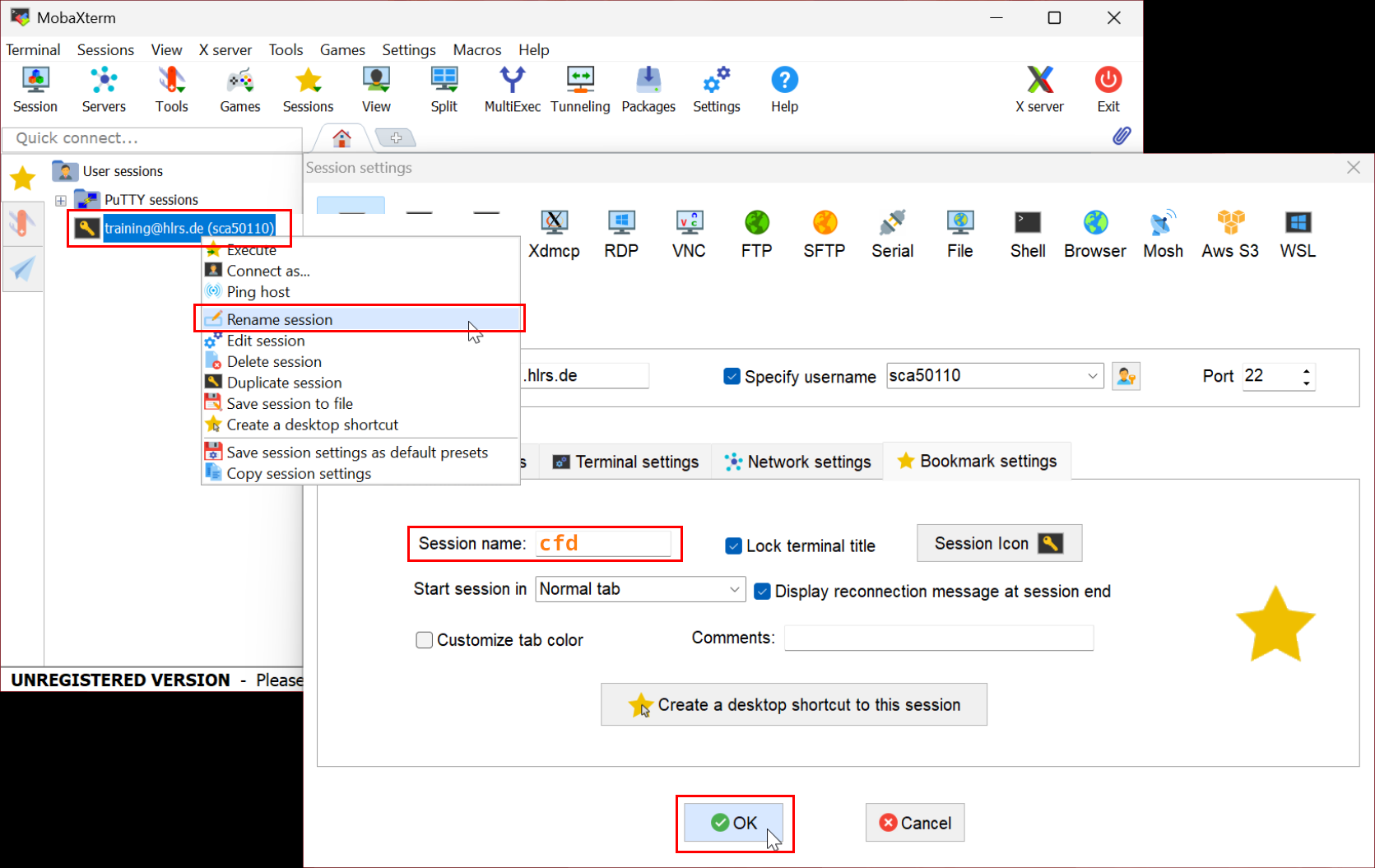
- After successfully connecting to the cluster, you can start submitting compute jobs. To see how, follow the guide: Getting started on a compute cluster
Step 7: Copying data to and from the cluster
There are two ways to copy files between your computer and the training cluster: the graphical SFTP browser (easiest, recommended for beginners) or the terminal withscp
. Both use the same secure SSH connection you already set up.
Method A: Graphical SFTP browser
Best for: quick, occasional transfers and browsing your files. No additional configuration is required.-
Connect to the training cluster using your saved session (see Step 4).
The SFTP panel appears on the left side and shows your home directory on the cluster, see the red line in the image below. Above the line is the toolbar, below the bar is the panel with the file tree.
Show screenshot ▶
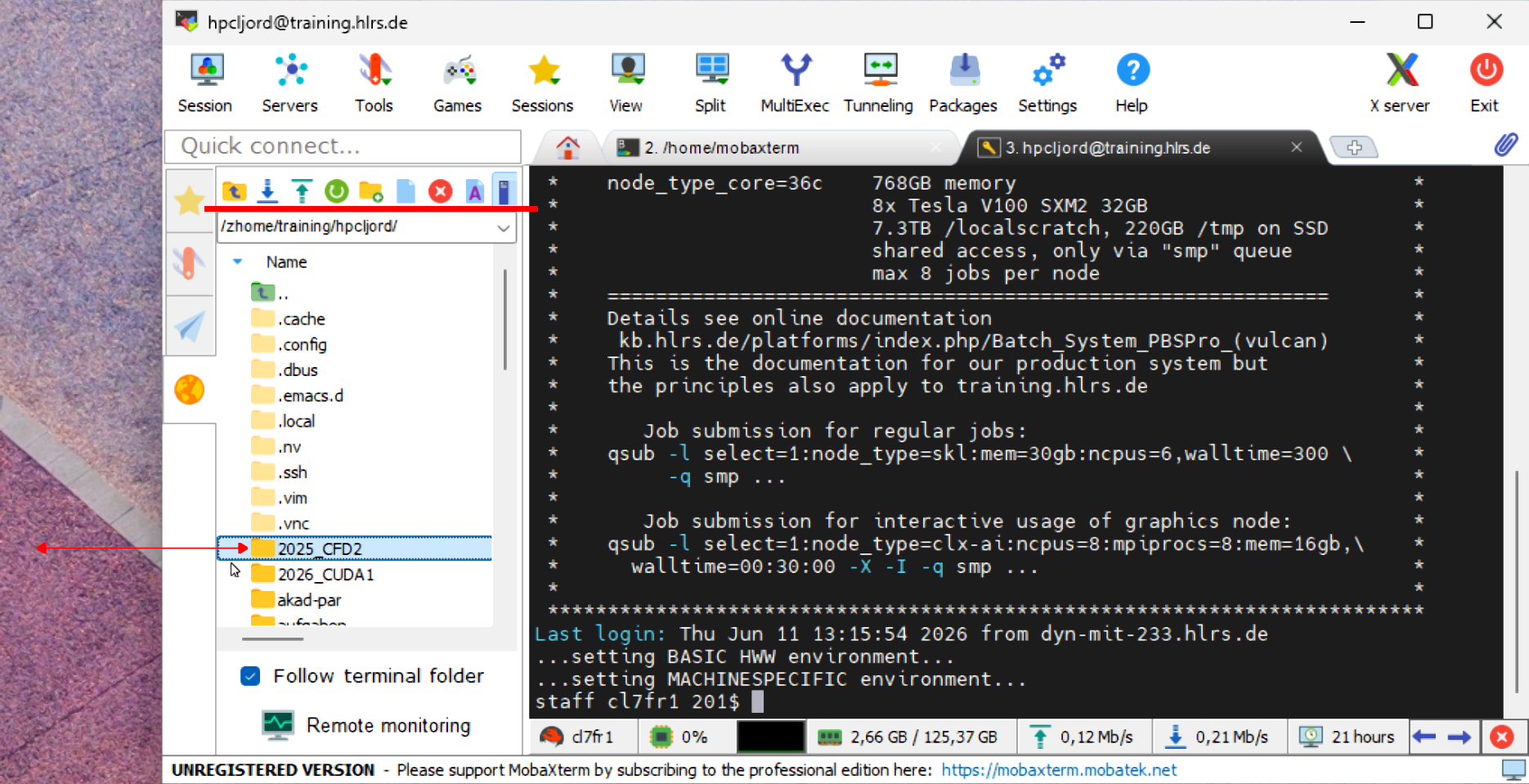
- To upload files, click the upload button (arrow pointing up) in the panel toolbar, or simply drag files from Windows Explorer into the panel.
- To download files, select them in the panel and click the download button (arrow pointing down), or drag them into a Windows Explorer window.
- If a file you just created on the cluster does not appear in the panel, click the refresh button (circular arrow) in the panel toolbar.
Method B: Terminal with SSH config and scp
Best for: copying many files at once or repeating the same transfer. The SSH configuration created here matches the one in the OpenSSH guide.Important: run all commands in this section on your own computer, in the local MobaXterm terminal. Do not run them in a terminal that is already connected to the cluster.
-
Open a local terminal by clicking
Start local terminal
on the MobaXterm start page, then create the
~/.sshdirectory if it does not already exist:
mkdir -p ~/.ssh && chmod 700 ~/.ssh -
Copy your SSH key into MobaXterm's home directory. Adjust the Windows path to match your key file:
Note:cp /drives/c/Users/<Windows username>/.ssh/sca50xxx ~/.ssh/ chmod 600 ~/.ssh/sca50xxx/drives/c/is how MobaXterm shows your Windows drive C:. If your Windows username contains spaces, put the whole path in quotes. -
Create the SSH configuration file by typing
nano ~/.ssh/config. Add the following block, save with Ctrl+O, Enter and exit with Ctrl+X. Replace the placeholders with your actual values:
Host <alias>
    Hostname training.hlrs.de
    Port 22
    User sca50xxx
    IdentityFile ~/.ssh/sca50xxx
    IdentitiesOnly yes
    PreferredAuthentications publickey,keyboard-interactive
    ServerAliveInterval 60
    ServerAliveCountMax 5
    ForwardX11 yes
    DynamicForward 8080
SSH options explained: ▶-
IdentitiesOnly yes
only use the specified key; do not try other keys loaded in the agent. This helps prevent failed login attempts that could get your IP address blocked by the server. -
PreferredAuthentications publickey,keyboard-interactive
try key-based login first, fall back to OTP/challenge-response. Plain password auth is not supported by HLRS and is skipped. This helps prevent failed login attempts that could get your IP address blocked by the server. -
ServerAliveInterval 60
send a keepalive packet every 60 seconds to prevent idle disconnects. -
ServerAliveCountMax 5
drop the connection after 5 missed keepalive responses (approx. 5 minutes). -
ForwardX11 yes
allow graphical programs running on the cluster to open windows on your local machine (see Step 5). -
DynamicForward 8080
open a local SOCKS proxy on port 8080, needed by courses that use port forwarding (see Step 6).
-
-
Test the configuration:
Verify that the fingerprint as before and continue. If you land on the cluster, everything works. Typessh <alias>exitto return to the local terminal. - We recommend naming this alias after a short version of your course, for example CFD for Computational Fluid Dynamics. If you attend multiple courses, make sure each alias is unique.
-
Now you can use the
<alias>alias directly inscpcommands to copy files:- Upload a single file to your home directory
scp local_file.txt <alias>:- Upload a whole directory to a remote path
scp -r local_dir <alias>:/path/to/remote/dir/- Download a file to the current local directory
scp <alias>:/path/to/remote/file.txt .