Environment Modules
The module command loads and unloads coordinated
software stacks.
Everyday commands:
$ module avail          # list available modules
$ module avail gcc      # search for modules matching "gcc"
$ module load rocm      # load a module
$ module list           # show currently loaded modules
$ module unload rocm      # unload one
$ module purge            # unload ALL (avoid, see stacks)
Loading a module adjusts PATH,
LD_LIBRARY_PATH, etc. so the right binaries and libraries
are found. Load several to combine them; conflicting ones fail or
auto-swap.
Finding out about a module:
$ module whatis <name>      # short description
$ module help <name>        # detailed help
$ module display <name>     # env vars set
$ module spider             # ALL modules
$ module spider <name>      # how to load
$ module key <keyword>      # search by keyword
Docs: module
command · module
environment
HLRS Software Stacks
A software stack bundles a CPE version with HLRS
additions, versioned YYYY.D. Two flavours:
HLRS/APU: MI300A nodes (default)HLRS/CPU: CPU-only nodes
$ module list HLRS                            # which stack is loaded
$ module avail HLRS                           # all available stacks
$ echo $HLRS_SOFTWARE_STACK_RELEASE_VERSION   # e.g. 2026.1
$ echo $HLRS_SOFTWARE_STACK_CPE_VERSION       # bundled CPE, e.g. 25.09
$ module load HLRS/CPU                        # switch to CPU stack
Loading the right flavour (on login and in the job script)
is your responsibility.
Login default: two stacks auto-load
(don't `module purge`):

 HLRS/APU/2026.1
   pins CPE 25.09 (cce 20.0.0)
   adds rocm 6.4.1, GPU target,
   GPU/MPI env, HLRS software

 PrgEnv-cray
   cc / CC / ftn wrappers
   cray-mpich, cray-libsci
   (the CPE libs, next slide)

Can't pick CPE directly:
switch the HLRS stack to change it.
See the HLRS
software stacks docs.
Programming Environments on Hunter
PrgEnv modules coordinate the compiler, MPI, and libraries.
PrgEnv-cray loads by default at login and provides the
compiler wrappers.
PrgEnv-cray: Cray compilers (default)PrgEnv-gnu: GNU compilersPrgEnv-amd: AMD compilers
$ echo $PE_ENV   # which one is active
$ module swap PrgEnv-cray PrgEnv-gnu
Swapping auto-reloads the matching cray-mpich and
cray-libsci. Do not change the base compiler
module directly; always go through PrgEnv-*.
Only PrgEnv-cray and PrgEnv-amd can compile
for the MI300A GPUs. PrgEnv-gnu is CPU-only.
Always build with the wrappers, never the compiler
directly. They add the right include paths, libraries, and MPI
setup:
$ cc  prog.c    -o prog   # C
$ CC  prog.cpp  -o prog   # C++
$ ftn prog.f90  -o prog   # Fortran
To see what a wrapper invokes:
$ cc -v ...                 # full command
$ cc --cray-print-opts=all  # flags & libs
See the programming
environments docs.
Putting It Together in a Job Script
#!/bin/bash
#PBS -l select=1:node_type=mi300a
#PBS -l walltime=01:00:00

cd $PBS_O_WORKDIR

# System modules
module load rocm
module load cray-mpich

# Python environment
module load micromamba
export MAMBA_ROOT_PREFIX=$HOME/micromamba
micromamba activate myproject

python my_script.py
The job starts from a fresh environment. The script
must set up everything itself:
- System modules:
module load the stack
you built against (rocm, cray-mpich) again.
Login-session modules do not carry over.
- Python env: set
MAMBA_ROOT_PREFIX,
then micromamba activate. Conda/mamba environments do not
carry over either.
- Run: only now does
python see the
right interpreter and libraries.
Batch
System / PBS: Overview
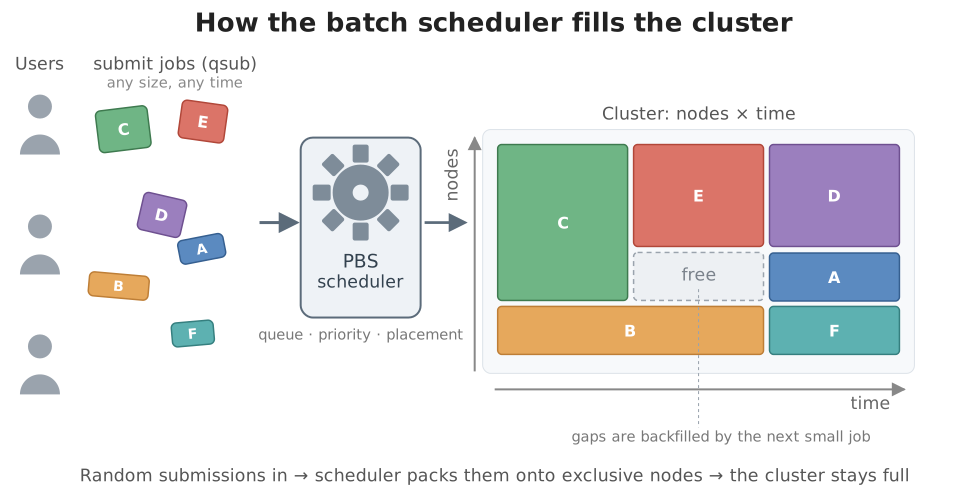
Why a Batch System?
Hunter has 188 APU nodes shared by hundreds of
users.
You cannot just SSH into a compute node and run your simulation.
Instead, you submit a job to the batch
system, which:
- Decides when your job runs (queueing &
priority)
- Decides where it runs (which nodes)
- Reserves the nodes exclusively for you while it
runs
- Accounts the used node hours against your project
budget and for billing
Hunter uses PBSPro as its batch system.
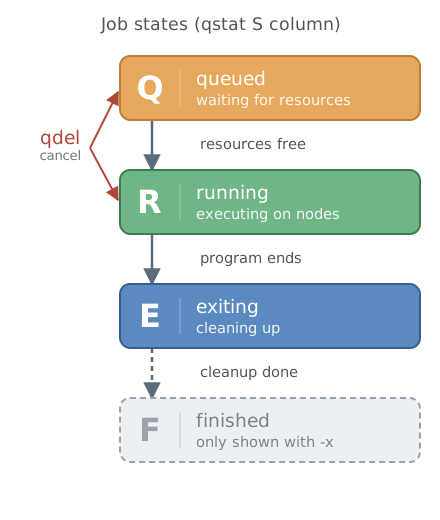
The Job Lifecycle
- Write a job script (a bash script with PBS
directives)
- Submit it with
qsub jobscript.pbs
- PBS puts the job in a queue
- When resources are free, PBS schedules the job
- The job runs on the assigned nodes
- Output and errors are written to log files
- The job exits, the nodes are released
You get an email (if requested) at begin/abort/end.
  jobscript.pbs
        │
        │ qsub
        ▼
   ┌─────────┐
   │  queue  │ ◄── qstat
   └────┬────┘     qdel
        │
        │ scheduled
        ▼
   ┌─────────┐
   │ running │
   └────┬────┘
        │
        ▼
    log files
Jobs Inherit a Different Environment
What works in your interactive shell does not
automatically work in a job. A PBS job starts from a fresh login
with the site defaults (not your session):
~/.bashrc is sourced- the default stack is loaded (
HLRS/APU
+ PrgEnv-cray)
- but anything you changed interactively (a
load,
swap, or export) is
discarded
Rule of thumb: load any non-default
stack, PrgEnv, or module inside the script. The defaults are already
there; your interactive changes are not.
 Login session          Job (compute node)
 ┌────────────┐         ┌──────────────┐
 │ ~/.bashrc  │ ── ✓ ──▶│ ~/.bashrc    │
 │ modules    │ ── x ── │ default stack│
 │ PATH=…     │ ── ? ──▶│ PATH=default │
 └────────────┘         └──────────────┘
re-run `module load` and 'export' in the script
Anatomy of a Job Script
Example jobscript.pbs:
#!/bin/bash
#PBS -N hello_jobstep
#PBS -m bae
#PBS -M your.name@example.com
#PBS -l select=2:node_type=mi300a:mpiprocs=4:ompthreads=22
#PBS -l walltime=00:10:00
#PBS -q test

cd $PBS_O_WORKDIR
export OMP_NUM_THREADS=22
export OMP_PROC_BIND=close

### not necessary here since it's the default
module load HLRS/APU

mpiexec -ppn 4 -np 8 \
    --cpu-bind list:2-23:26-47:50-71:74-95 \
    --gpu-bind list:0:1:2:3 \
    ./hello_jobstep | sort -k2n -k5n
Submit with qsub jobscript.pbs
See the PBSPro docs: batch
mode · node
types · examples
Three parts:
#PBS directives: comments to bash, but
the scheduler reads them.- Environment:
cd $PBS_O_WORKDIR (else
runs in $HOME), then module load (login
modules do not carry over).
- Launch:
mpiexec runs the program;
--cpu-bind/--gpu-bind pin each rank to a chip
(affinity section, later).
Resource request (-l select=...):
select=2 → 2 nodesnode_type=mi300a → APU nodes (4× MI300A each)mpiprocs=4 → 4 ranks/node (one per chip)ompthreads=22 → 22 threads/rank (24 cores, 2 for
OS)walltime=HH:MM:SS → max runtime; job
killed if exceeded. Try to minimize it, since longer
walltime → longer queue wait.
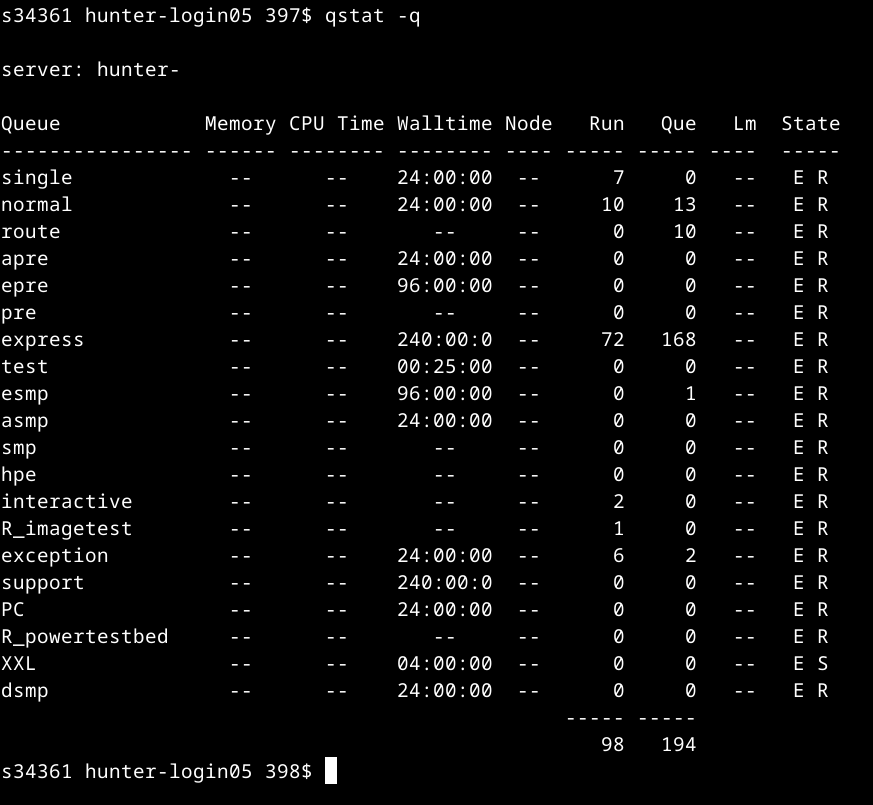
Queues on Hunter
$ qstat -q                  # list all queues
$ qstat -qf <queue>         # detailed info for one queue
Two queues you will use today:
| Queue |
Walltime |
Use for |
test |
max 25 min |
quick tests, debugging, the hands-on |
| (default) |
longer |
production runs |
If you do not specify -q, PBS chooses a default queue
based on your resource request.
See all available queues at Batch_System_PBSPro_(Hunter)#Batch_Queue_Policies_and_Limitations
Managing Jobs
$ qsub jobscript.pbs        # submit
12345.hunter-batch

$ qstat                     # show your jobs
$ qstat -u $USER            # same, explicit

$ qstat -f 12345            # full info on a running job
$ qstat -xf 12345           # full info on a finished job

$ qdel 12345                # cancel a job
When a job finishes unexpectedly:
qstat -xf <jobid> → exit status & resources
used- then read the
.o / .e files
Software
Available on Hunter
Scientific Software Already Installed
Before installing anything yourself, check whether it is already on
Hunter as a module. Most common HPC libraries are.
Numerical & math
cray-libsci (BLAS, LAPACK, ScaLAPACK) (loaded by
default)cray-libsci_acc: GPU-accelerated BLAS/LAPACKcray-fftw: FFTspetsc, hypre, trilinos:
sparse solverskokkos: performance-portable parallelism
Mesh partitioning
metis, parmetis, scotch,
kahip
Parallel I/O
cray-hdf5-parallel, cray-netcdfcray-parallel-netcdfadios2
Build & development
cmake, meson, ninjaboost, python/3.11
Profiling (covered later today)
perftools-lite, scorep,
scalasca, extrae, mpip,
vampir, rocprof-compute
$ module avail            # everything available
$ module spider <name>    # how do I load X?
$ module key fft          # find by keyword
kb.hlrs.de/platforms/index.php/Libraries_(Hunter)
Commercial Engineering Codes
Hunter has several commercial CAE/CFD codes, all for
non-commercial use only. Most also require Uni
Stuttgart membership; check the terms per code:
| Code |
Use case |
Hunter partition |
| ANSYS¹ (Fluent, CFX, Mechanical) |
CFD, structural |
Genoa CPU; Fluent also on MI300A APU |
| STAR-CCM+ |
CFD, multiphysics |
Genoa CPU |
| ABAQUS |
Structural mechanics |
Genoa CPU |
| LS-Dyna |
Explicit dynamics, crash |
Genoa CPU |
| VASP² |
Computational chemistry |
check wiki |
¹ Fluent/CFX: any HLRS user (non-commercial). Mechanical: U
Stuttgart only. ² VASP: per research-group license.
These codes do not work the same way as your own MPI
programs:
- Most need a license, loaded via a vendor module
(e.g.
siemens/lic/...)
- The recommended
select line and mpiprocs
differ per code
- Most run on Genoa CPU, not MI300A, ask the contact
person if unsure
Full overview of available application software packages: kb.hlrs.de/platforms/index.php/Application_software_packages
HLRS Helper Scripts: the cae module
The cae module bundles small HLRS-written tools that
provides utility commands and provides job script templates:
| Command |
What it does |
qgen.sh |
Generate a PBS job script from a template; use
qgen.sh -l to list them |
qwtime |
Show remaining walltime of a running job |
qssh |
SSH into the first node of one of your running jobs |
ws_share |
Share a workspace with another user (replaces
ws_exchange) |
jobnodesinfo.py |
List the nodes a job is using and their layout |
Example how to generate and submit a job from a template:
$ module load cae
$ qgen.sh -l                                       # list templates
$ qgen.sh -n 2 -t 00:10:00 -o myjob.pbs <template>
$ qsub myjob.pbs
See kb.hlrs.de/platforms/index.php/CAE_utilities
Every Watt Counts
Hunter’s nodes draw substantial power and every allocated node
counts:
| Node type |
CPUs / APUs |
Node power (TDP) |
Node power (peak) |
| MI300A APU (EX255a) |
4× MI300A |
~2,200 W |
~3,040 W |
| Genoa CPU (EX4252) |
2× EPYC 9374F |
~640 W (CPU only) |
~800–1,100 W (est.) |
System and data centre infrastructure add further overhead:
| Component |
What it covers |
MI300A overhead |
Genoa overhead |
| System |
+ Network, storage, CDUs, PSU losses |
× 1.43 |
× 1.51 |
| Data centre |
+ Chillers, UPS, transformers, pumps |
× 1.05 |
× 1.05 |
Each MI300A node your code cannot keep busy consumes ~3,300 W
of total facility power
Equivalent to 8 average German
households (≈ 400W each) running continuously.
What you can do:
Optimizing your code
Don’t Guess, Measure
You only know where a code spends its time by
measuring it.
Intuition about hotspots is wrong more often than not; small
functions called millions of times beat big functions called once.
Profiling answers:
- Which routines dominate the runtime?
- How much time goes into MPI communication vs. real computation?
- Is the work balanced across ranks?
- Does the code scale when you add more nodes?
The first two questions tell you what to optimize.
The last two tell you how many nodes to request, which,
as the previous slide showed, is also a power and budget question.
Where to Learn More
This was just a mention, not a tutorial. When you’re ready:
HLRS knowledge base workflow guides written for HLRS
systems:
Upstream training material Score-P, Scalasca, and
Cube are developed at JSC and presented regularly at VI-HPS
workshops:
HLRS courses on performance optimization and parallel
programming hlrs.de/training/hpc-training.
If you get stuck on a real code, open a support ticket. We help our
users optimize their applications on HLRS systems.
Example
Workflow: OpenFoam®
Running OpenFOAM® on Hunter
An example of a CFD workflow on a cluster, demonstrated with with
OpenFOAM®:
- Set up the project
- Preprocess (mesh, configure)
- Decompose
- Run in parallel
- Reconstruct
- Visualise
![]() Plot generated
with ParaView
Plot generated
with ParaView
What is OpenFOAM®?
- Open-source CFD toolbox in C++
- Hundreds of solvers for different physics (incompressible,
compressible, multiphase, combustion, radiation, …)
- No GUI required, a project is just a directory of text
files
- Installed centrally on Hunter as a module
The case: pitzDaily
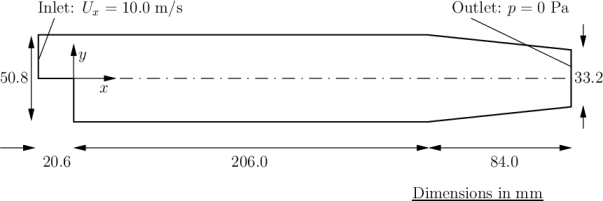
Steady turbulent flow over a backward-facing
step.
- Ships with
OpenFOAM® as
a test case
- Solver:
simpleFoam: steady-state,
incompressible, RANS
- Domain: 2D; short inlet, the step, converging nozzle at outlet
The flow detaches at the step, forms a recirculation bubble, and
reattaches downstream. The reattachment length is a classic validation
quantity and was measured experimentally by Pitz & Daily (1983).
Setup of an OpenFOAM® project
pitzDaily-hlrs/       ← static, in version control
├── job.pbs
├── vis.pbs
├── plot_streamlines.py
├── src/              custom dicts (copied into system at runtime)
│   ├── controlDict
│   ├── decomposeParDict
│   └── fvSolution
└── run./             ← created by the jobscript
    ├── 0/
    ├── constant/
    └── system/
        └── ... (tutorial dicts + your src/ overrides)
⬇
Download pitzDaily-hlrs.zip
pitzDaily is a test setup shipped with
OpenFOAM®,
after loading the openfoam module, you can copy it from:
$WM_PROJECT_DIR/tutorials/incompressible/simpleFoam/pitzDaily/
Project root holds everything around the
case:
job.pbs, vis.pbs: what the cluster
runsplot_streamlines.py: postprocessingsrc/: replacement dicts copied into
system/ at job start
The OpenFOAM® case itself:
0/: initial conditions + boundary
conditions, one file per field (U, p,
k, epsilon, …)constant/: mesh in
polyMesh/, transport + turbulence propertiessystem/: what the solver does:
controlDict: time stepping, outputfvSchemes: discretizationfvSolution: linear solvers, tolerancesdecomposeParDict: how to split for MPI
The simulation jobscript, top half
#!/bin/bash
#PBS -N openfoam_pitzDaily
#PBS -j oe
#PBS -l walltime=00:10:00

# 2 APU nodes × 96 cores = 192 ranks
#PBS -l select=2:node_type=mi300a:mpiprocs=96

module load HLRS/CPU
module load openfoam

cd $PBS_O_WORKDIR
RUN_DIR="$PBS_O_WORKDIR/run.${PBS_JOBID%%.*}"
mkdir -p $RUN_DIR

# Stage the case
CASEPATH="$WM_PROJECT_DIR/tutorials/incompressible/simpleFoam/pitzDaily/"
cp -r $CASEPATH/* $RUN_DIR/

# Drop in our custom dicts
cp $PBS_O_WORKDIR/src/controlDict       $RUN_DIR/system/
cp $PBS_O_WORKDIR/src/decomposeParDict  $RUN_DIR/system/
cp $PBS_O_WORKDIR/src/fvSolution        $RUN_DIR/system/
...
select=2:mpiprocs=96 Two MI300A nodes,
fully populated. Must equal numberOfSubdomains in
decomposeParDict or the solver errors out.
module load Compute nodes start with a
clean environment, load modules inside the script, not just in your
login shell.
Custom dicts in src/ Tutorial defaults
aren’t suited for a parallel HPC run. Three replacements:
controlDict: run length, outputdecomposeParDict: method metis, subdomain
countfvSolution: solver tolerances
One source of truth: change a value once, resubmit.
The simulation jobscript, bottom half
...

cd $RUN_DIR

# Mesh
blockMesh
refineMesh -overwrite
refineMesh -overwrite

# Decompose for parallel run
decomposePar -fileHandler collated

# Solve
CORES=$(wc -l < $PBS_NODEFILE)
mpirun -n $CORES \
    simpleFoam -parallel -fileHandler collated
blockMesh + refineMesh
Generate ~12k cells, the two refinement passes bring it to ~780k. The
original is too small to show meaningful parallel scaling.
decomposePar -fileHandler collated
Splits mesh + fields into per-rank chunks. collated writes
one file per field instead of one per rank per timestep —> Lustre
metadata server stays happy.
mpirun -n $CORES
$PBS_NODEFILE has one line per allocated rank;
wc -l counts them.
-parallel -fileHandler collated The
solver needs both flags to read the decomposed case correctly.
Submit and monitor
qsub job.pbs          # submit
qstat                 # status of all your jobs
qstat -f              # detailed info on one job
Output appears in openfoam_pitzDaily.o<jobid> in
the submit directory.
You can watch it live while the job runs:
tail -f openfoam_pitzDaily.o123456
Useful for long simulations where you want to see solver residuals
dropping in real time.
Postprocessing / Visualisation
cd run.<jobid>
reconstructPar -latestTime
Stitches the per-rank chunks inside processors*/
subdomains back into single time files at the top level
(3000/ for our final iteration).
Now we have a regular, undivided
OpenFOAM®
case ready to visualise.
The reconstructed directory contains all you need:
run.123456/
├── 0/             initial conditions
├── 3000/          final result
├── constant/      mesh + physics
├── system/        solver settings
└── processors*/ ← no longer needed
compute on Hunter → reconstruct → render on Vulcan
Hunter has no X-server for security reasons. It is recommended to use
the visualisation nodes on Vulcan instead.
The Hunter workspace is mounted on Vulcan’s vis
nodes, so no copy step is needed. Same path, same files, viewed
from a different cluster.
Two paths:
- Batch:
qsub vis.pbs on Vulcan. If you
have a working plotting script.
- Interactive: ParaView GUI via VNC. Use this to
explore your data.
The visualisation job
#!/bin/bash
#PBS -N pv_streamlines
#PBS -q vis
#PBS -l select=1:node_type=genoa-a30
#PBS -l walltime=00:30:00
#PBS -j oe

# Point at the case on the (mounted) Hunter workspace
# Copy the path from the Hunter login node, you won't see it on Vulcan's login nodes
RUN_DIR="/lustre/hpe/ws13/.../run.<jobid>"
cd "$RUN_DIR"

module load openfoam
reconstructPar -newTimes

module load paraview
pvbatch --opengl-window-backend 'EGL' \
    "$PBS_O_WORKDIR/plot_streamlines.py" .
If you visualised multiple timesteps, you can download the images and
turn them into a video:
ffmpeg -framerate 3 -pattern_type glob \
    -i 'streamlines_t*.png' convergence.gif
![]()
Submit on Vulcan: qsub vis.pbs
The genoa-a30 node has one NVIDIA A30 GPU. The
EGL backend uses it for rendering without needing an X
server.
Interactive: ParaView GUI via VNC
For tuning the render, the GUI is essential. HLRS provides a helper
script that handles VNC session setup:
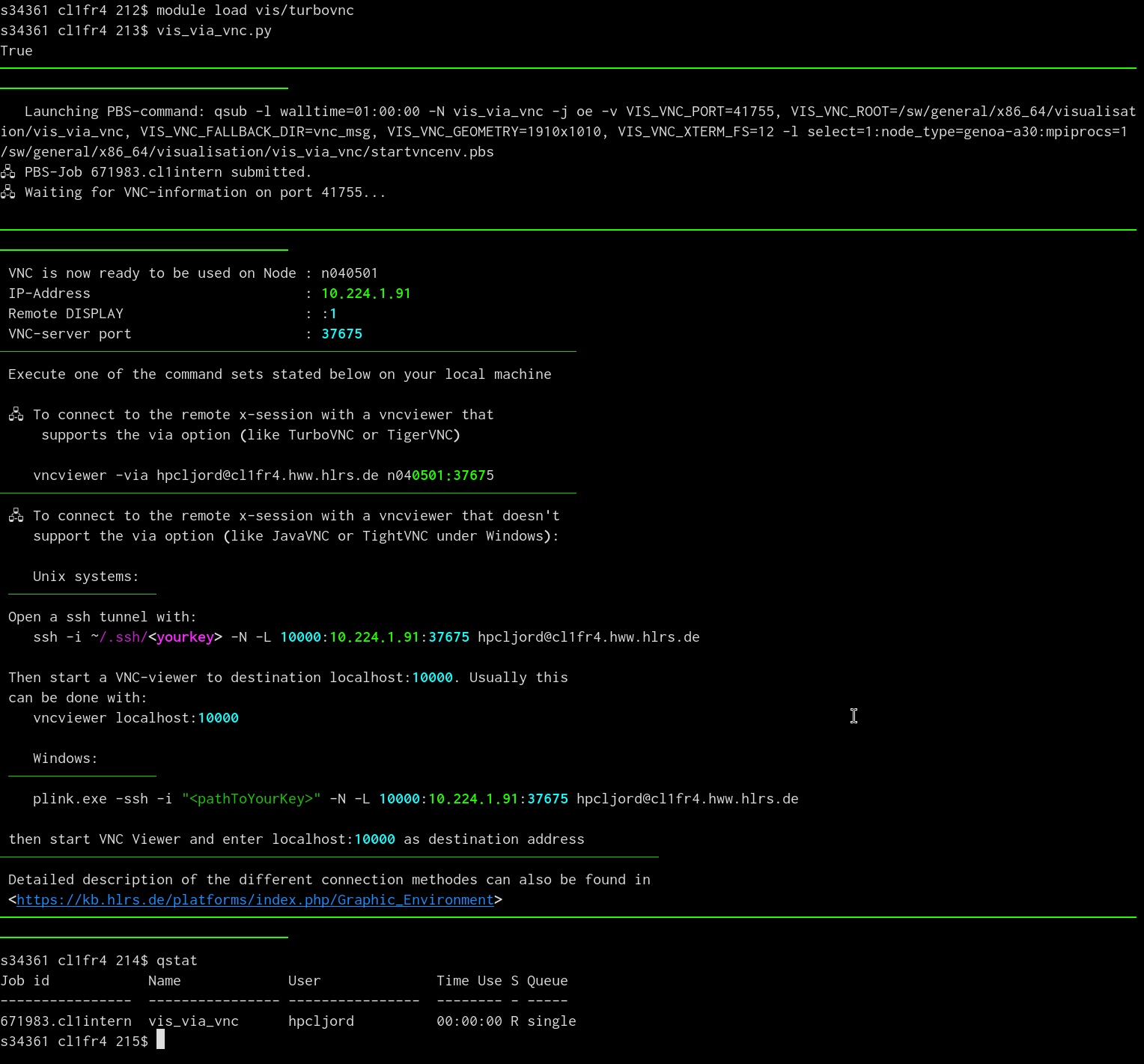
On Vulcan login:
module load turbovnc
vncpasswd                  # first time only
vis_via_vnc.py
The script prints a ssh ... command and a
vncviewer localhost:10000 command once the job starts.
On your local machine:
Install one of TurboVNC, tightvncviewer, or TigerVNC. Then run the
printed command, a desktop will appear, see next slide.
Interactive: ParaView GUI via VNC
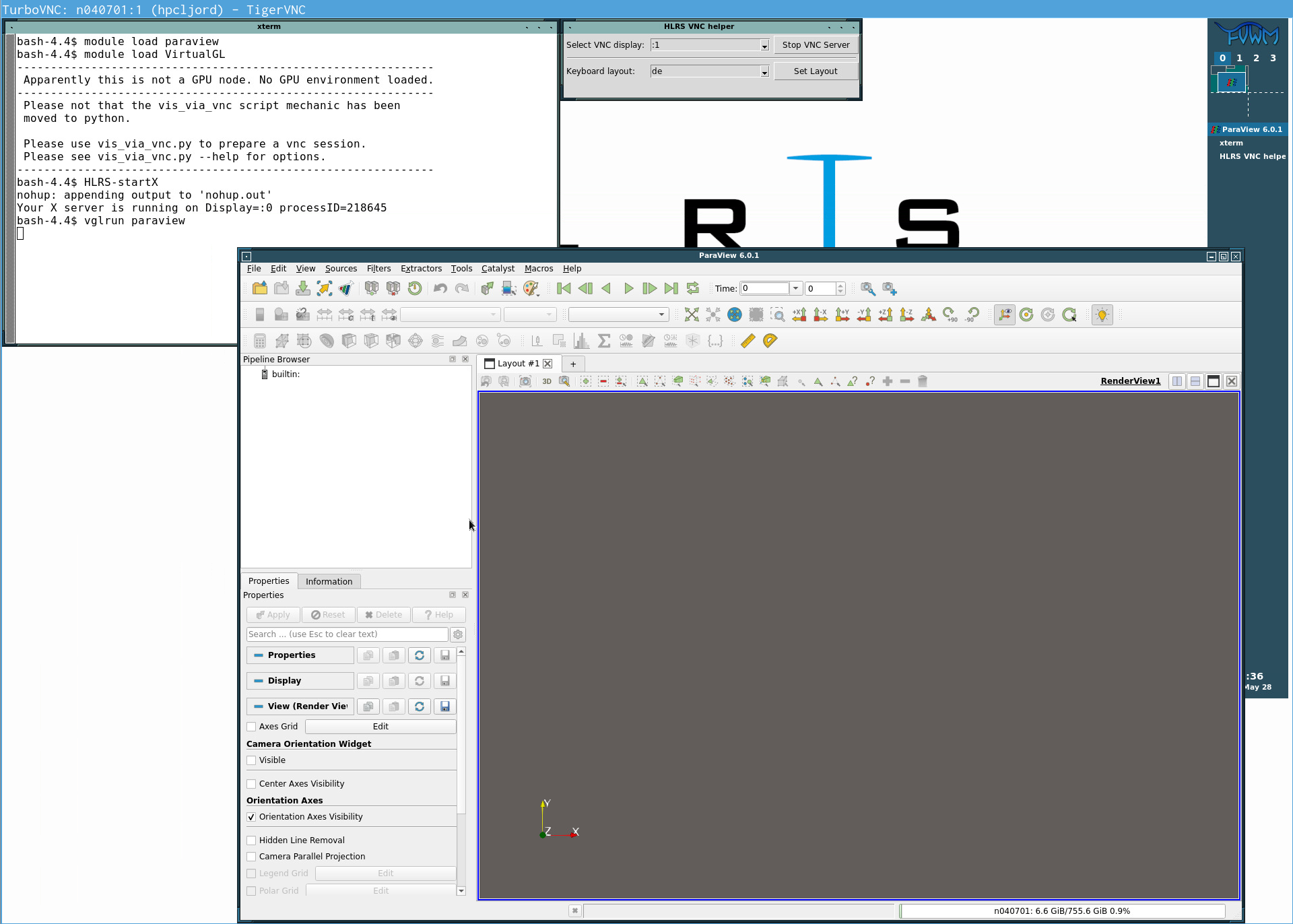
Inside the VNC desktop:
HLRS-startX                # GPU-accessible X server
module load paraview
module load VirtualGL
vglrun paraview            # hardware-accelerated GUI
vglrun routes OpenGL calls to the actual GPU via
VirtualGL. Otherwise, the X server inside VNC would do software
rendering.
Open case.foam from the Hunter workspace mount, set up
Stream Tracer, save screenshot.
End the session via the VNC Helper app on the desktop.
Hands-On
Loading Modues & Submitting Jobs
 Plot generated
with ParaView
Plot generated
with ParaView